
Managing Your Clients in Woven
How Woven builds and maintains your client list, and how to filter, sort, and use it to understand your business.
Your client list in Woven grows automatically as people book your classes. Each client record brings together their booking history, attendance, and payment activity in one place. This article explains how the client list works and how to get the most from it.
How Client Records Are Created
When someone books a class for the first time, Woven creates a client record linked to their phone number. Their name (collected at checkout) and phone are stored automatically — you don’t need to enter anything manually.
If the same person books again, Woven recognises them by their phone number and adds the new booking to their existing record. Clients don’t create accounts — Woven handles identity behind the scenes.
Viewing Your Clients
Your client list is accessible from the Clients tab in your admin. By default, clients are sorted by membership — those who’ve booked the most appear first.
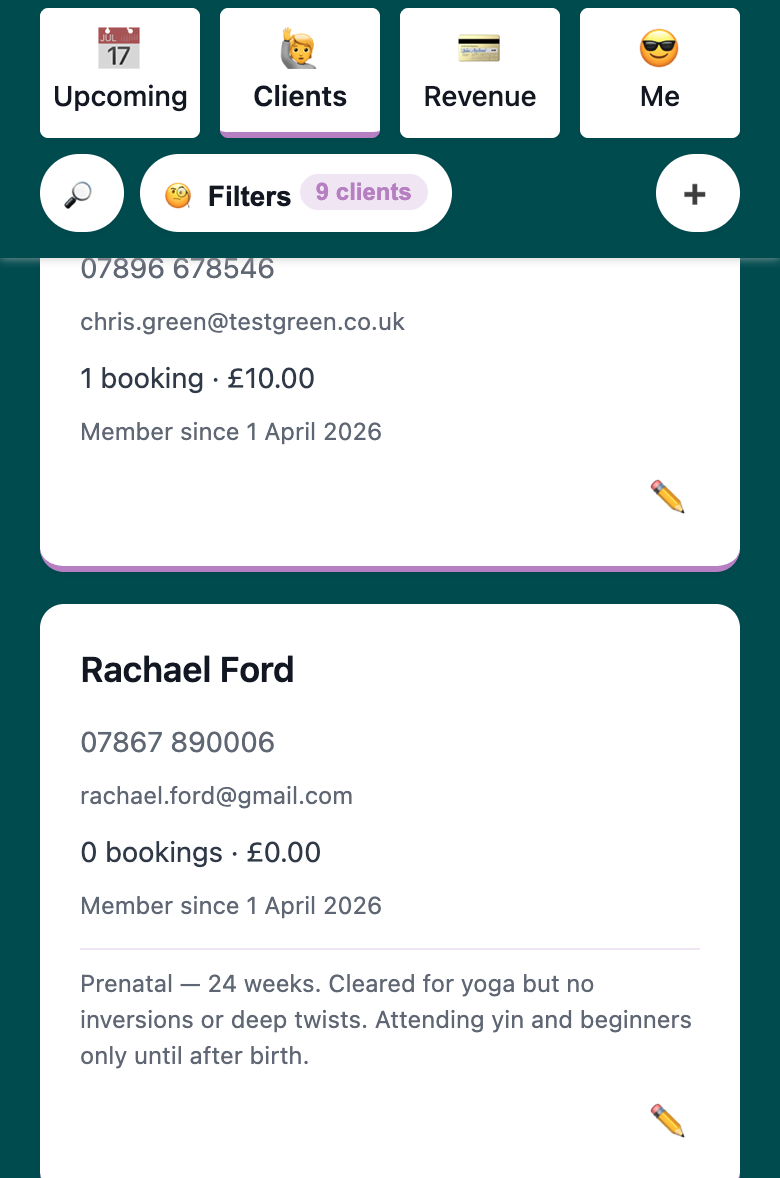
Each client card shows:
- Name and phone number
- Total spend
- Membership date
- Notes (if any have been added)
Filtering and Sorting
The filter toolbar lets you cut the list by what matters to you. Tap Filters to open the sort and date range options.
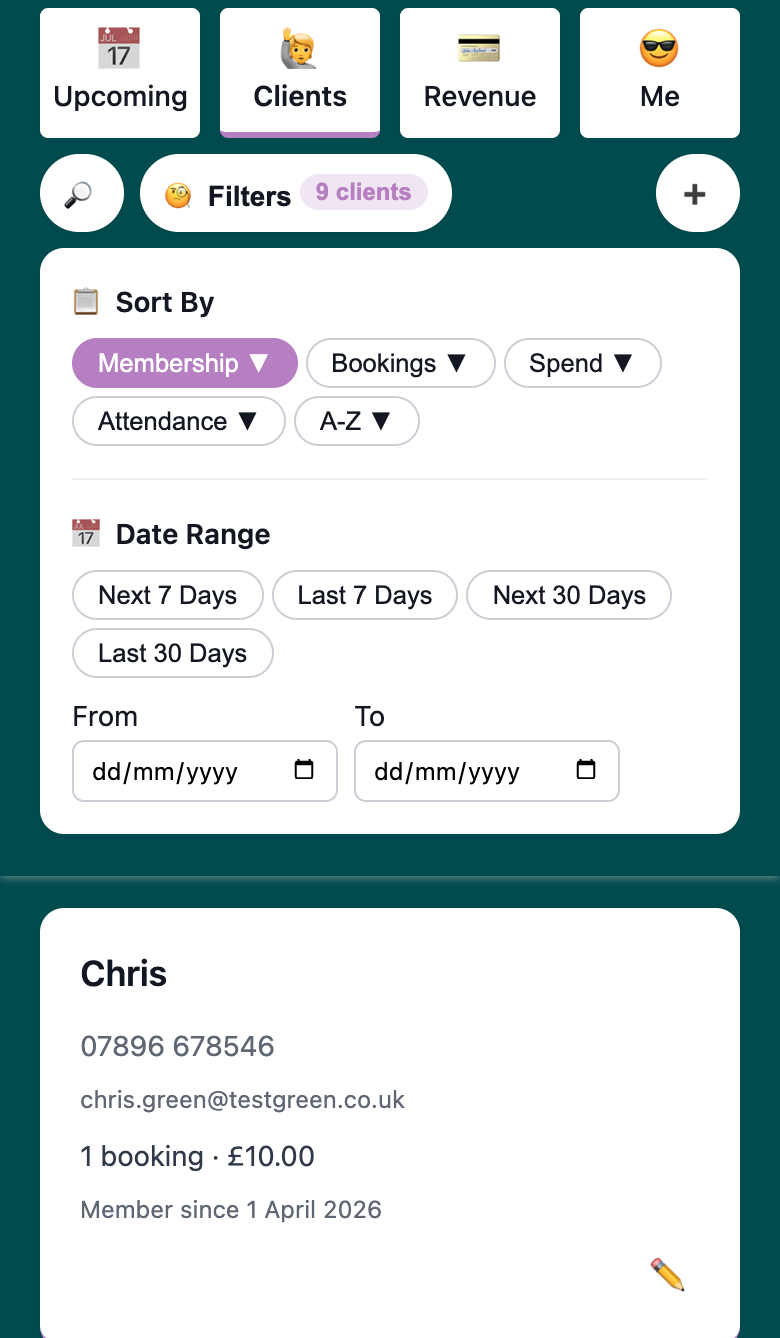
Sort options:
- Membership — your most engaged clients first
- Bookings — by total number of sessions booked
- Spend — by total amount paid
- Attendance — by attendance rate (bookings attended vs. booked)
- A–Z — alphabetical by name
Date range filters let you look at activity within a specific window — useful for seeing who’s booked recently, who’s attended in the last 30 days, or who’s been inactive.
You can also search by name or phone number using the search button.
Client Profiles
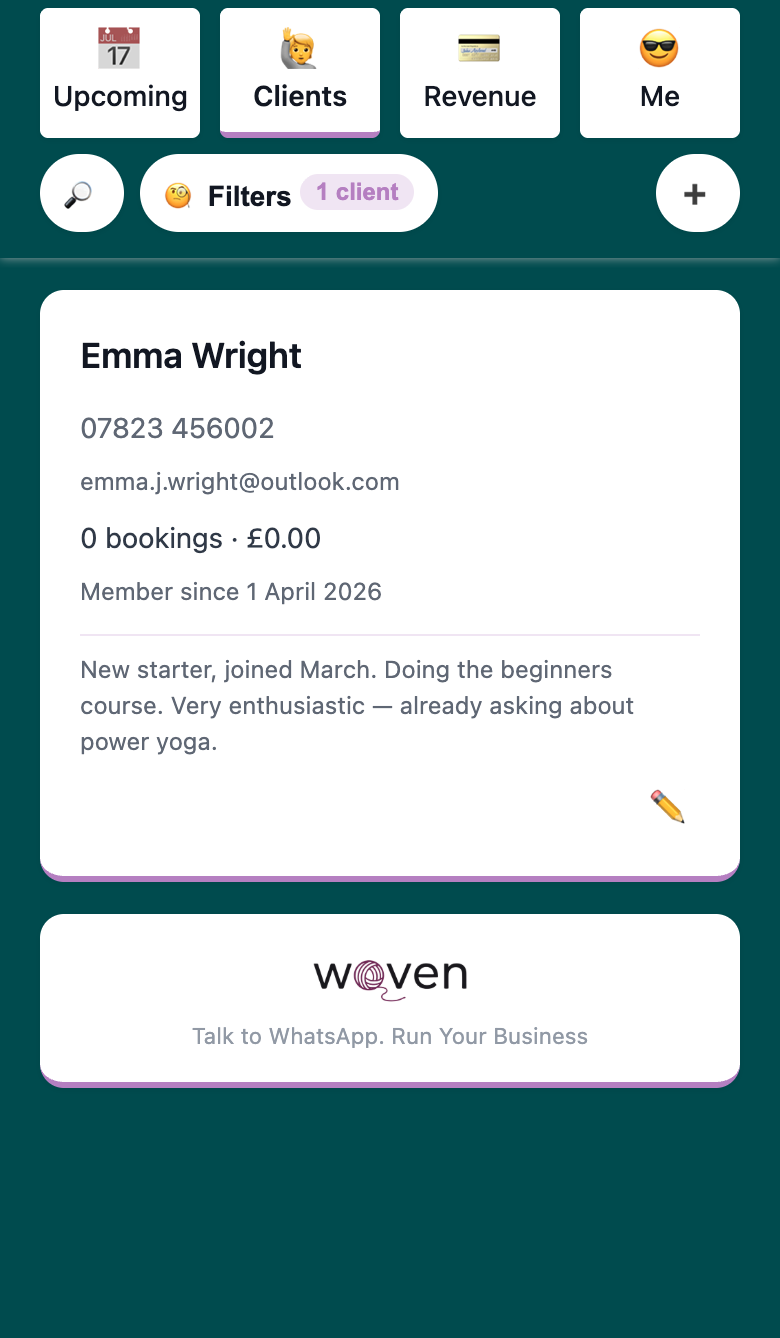
Each client card shows their contact details, booking summary, and membership date at a glance. Cards with notes show those notes directly on the card — useful for keeping important context visible without having to open anything.
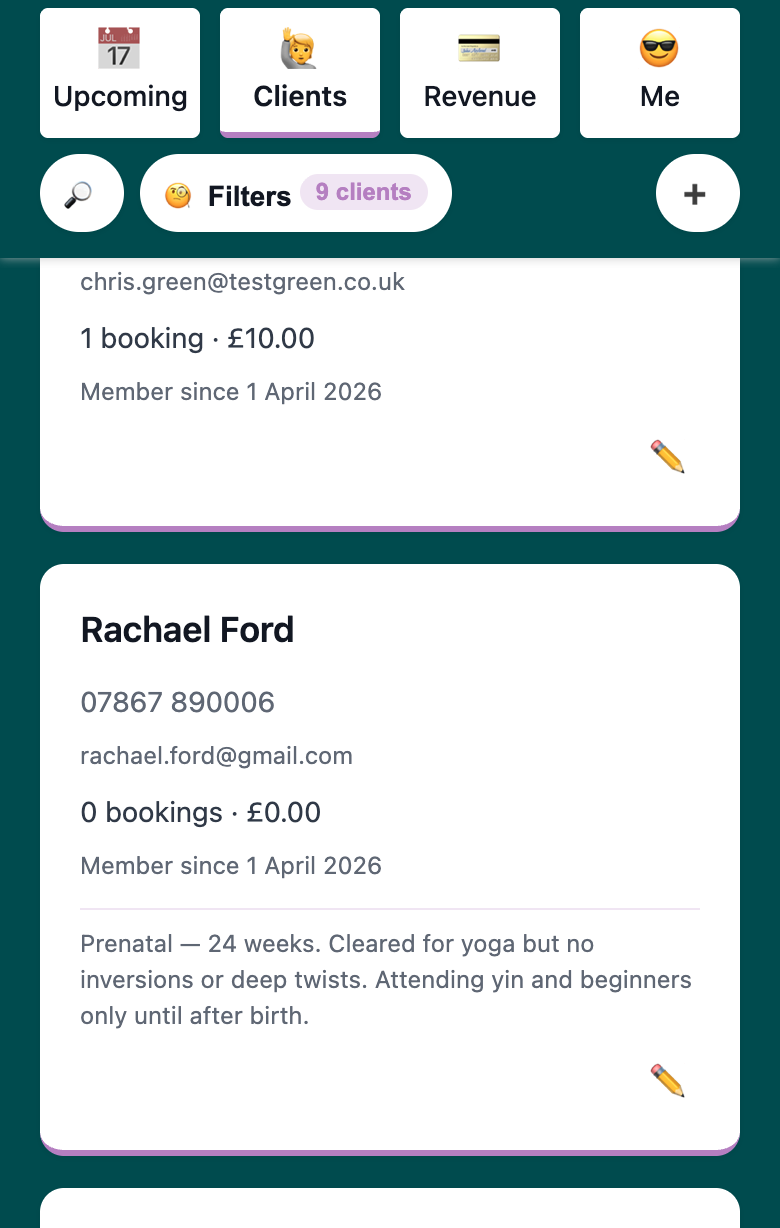
Tap the ✏️ button on any card to edit the client’s details — display name, email, and notes.
Client Notes
Each client record has a notes field for anything useful to know about that person — injuries, preferences, physical limitations, goals, or anything else you’d want to remember before a class or record afterwards.
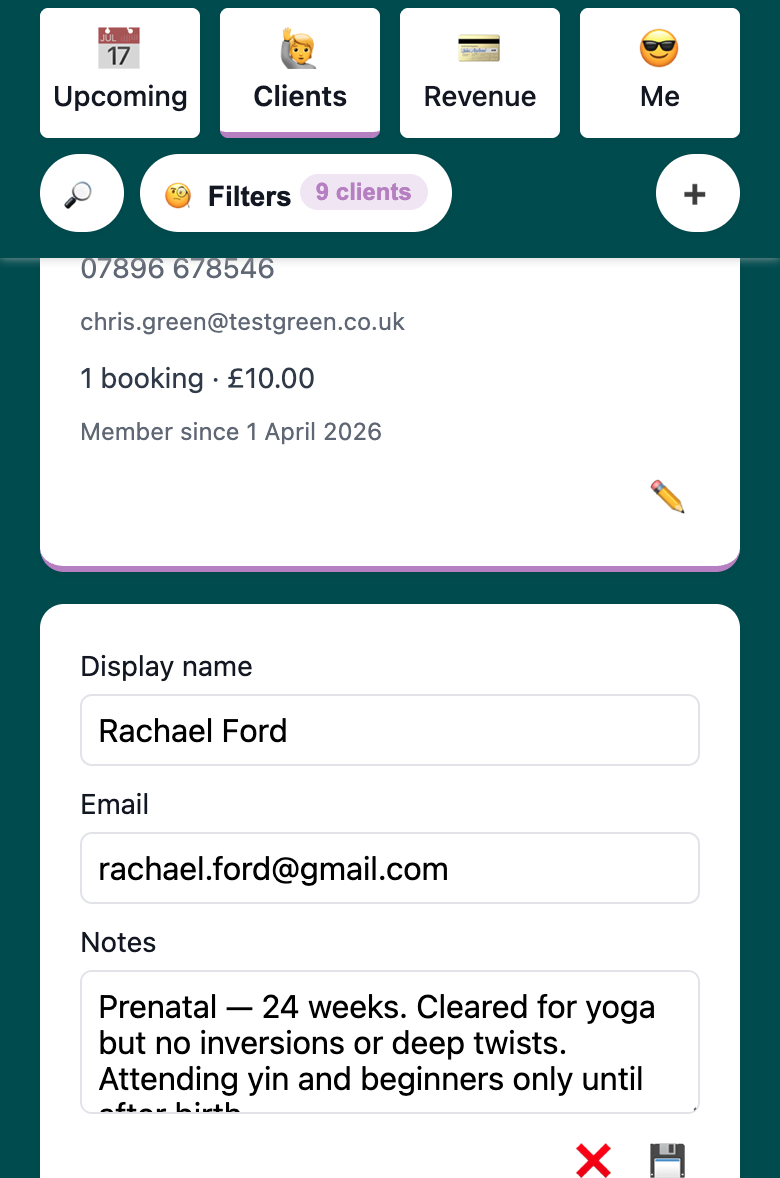
Notes are private — only you can see them. They’re a good place to capture the kind of detail that makes clients feel genuinely looked after: you remembered they have a bad knee, or that they prefer the front row, or that they’re training for an event. Add a note after a session while it’s fresh, and you’ll have it next time they walk in.
Adding a Client Manually
If someone books outside Woven — in person, over the phone, or via WhatsApp — you can add them to your client list manually. Use the ➕ button in the Clients view.
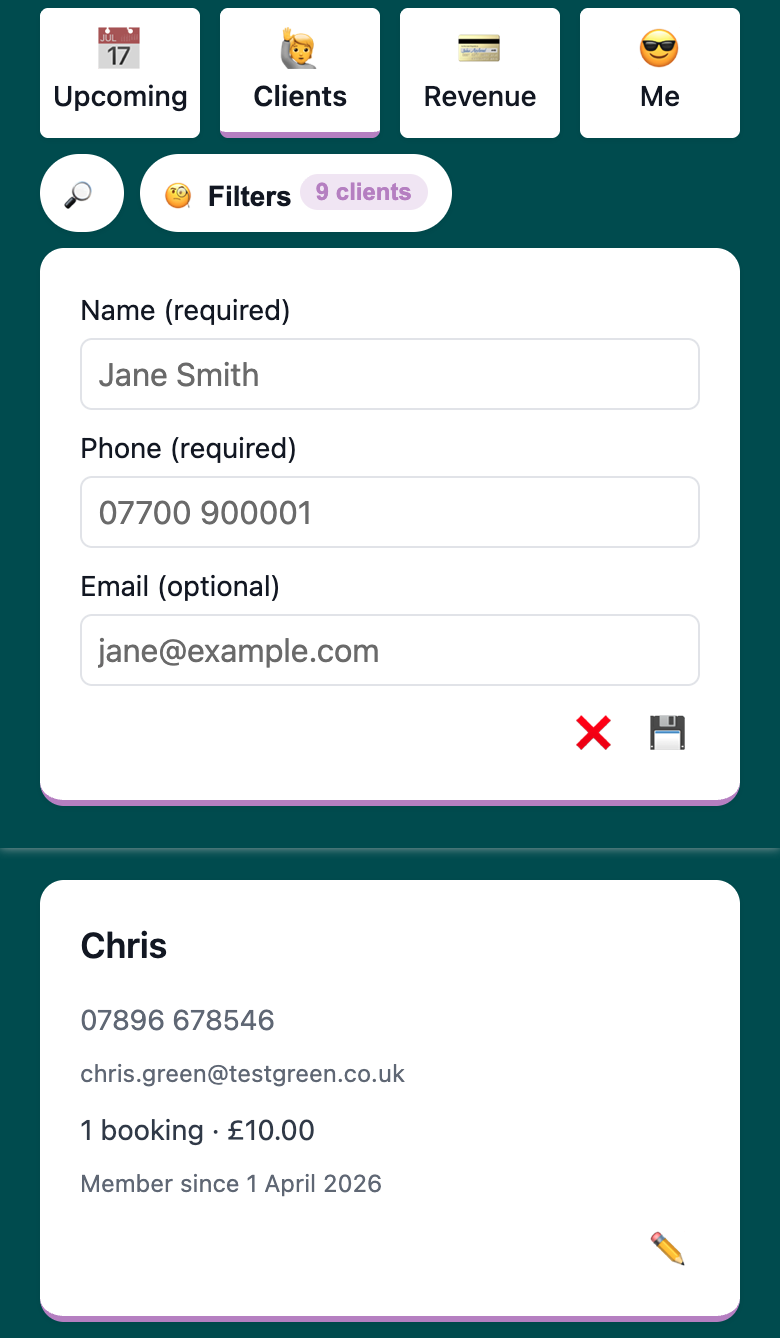
The minimum required is a name and phone number. Phone number is how Woven identifies clients and sends them WhatsApp confirmations and reminders, so it’s the one field you can’t skip. You can also add an email address if you have it, but it’s optional.
Manual clients work exactly like any other client record. You can add them to classes, track attendance, send payment links, and add notes.
Searching for a Client
Tap the 🔎 button to open the search bar. Type a name, phone number, or email to filter the list instantly.
What Clients See
Clients don’t have a login or dashboard in Woven. Their interaction with your business happens through your public page (for booking) and WhatsApp (for confirmations and reminders). Your client list is your view — clients don’t see it.
Related: