
Taking Payments for Classes with Woven
How payments work in Woven — Stripe integration, pricing, and what happens when clients pay.
Woven uses Stripe to process payments for class bookings. This means your clients pay securely at the point of booking, and the money goes directly to your Stripe account. You don’t need to chase payments or handle card details.
How Payment Works
When a client books a class, they’re taken to a Stripe-hosted checkout page. They enter their payment details on Stripe’s secure page — Woven never sees or stores card information. Stripe accepts all major debit and credit cards (Visa, Mastercard, American Express), Apple Pay, and other payment methods depending on the client’s browser and device.
Once payment is complete:
- The booking is confirmed automatically
- Your client receives a WhatsApp confirmation
- The payment appears in your Stripe dashboard
- The booking appears in your Woven admin
If a client’s payment fails, the booking is not confirmed. The class place is not reserved until payment goes through.
Setting a Price for a Class
Prices are set per class when you create or edit a session. You can set any price in pounds, including free (£0.00). Free classes go through the same booking flow without a payment step — clients still book their place, so you know who’s coming.
What You Receive
Payments land in your Stripe account after Woven’s 1.5% transaction fee, subject to Stripe’s standard processing fees and payout schedule. There’s no monthly fee — you only pay when clients book and pay. You can see all transactions in your Stripe dashboard, and a summary of revenue in your Woven admin.
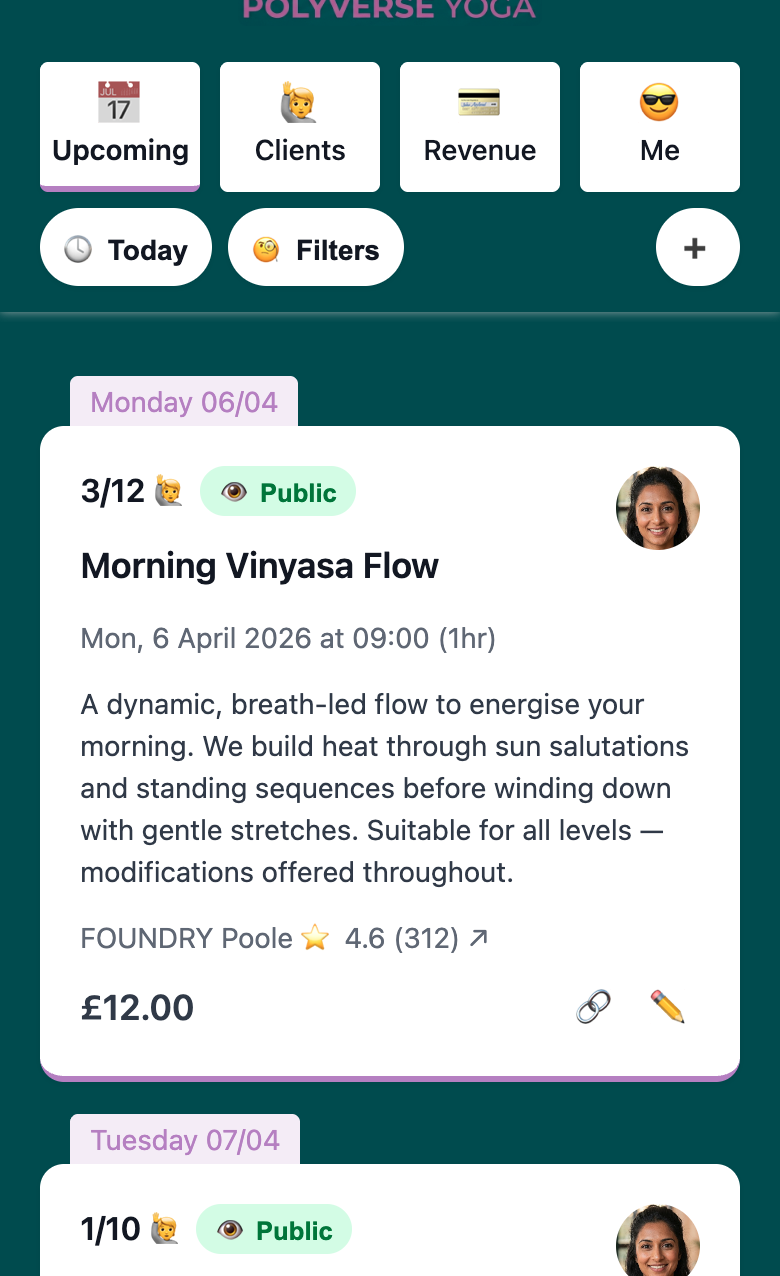
Sending a Payment Link
If you need to collect payment from a client outside the standard booking flow — for example, after adding them manually to a class, or for a balance outstanding — you can generate a payment link directly from their booking in your admin.
From the class attendee view, find the booking and tap the payment link button. This creates a Stripe checkout link you can send to the client via WhatsApp or any other channel.
Custom pricing: Before generating the link, you can set a different price for that individual booking — for a discount, concession, or any other arrangement. Edit the price on the booking card first. The link will charge the client at that amount; the default class price is unchanged for everyone else.
How payment links work:
- The link is valid for 24 hours from when it’s generated
- While the link is live, the client’s place in the class is held and counts against capacity
- If the link expires, you can generate a fresh one — the booking remains until you remove it
- Once the client pays, their booking is confirmed and marked as paid automatically
- If you change the class price while a link is active, it’s invalidated immediately (“Expired: Price Changed”) — generate a fresh link at the new price
A payment link is separate from a direct card booking — it’s used when you’ve added a client manually and want to collect payment after the fact.
Payment Statuses
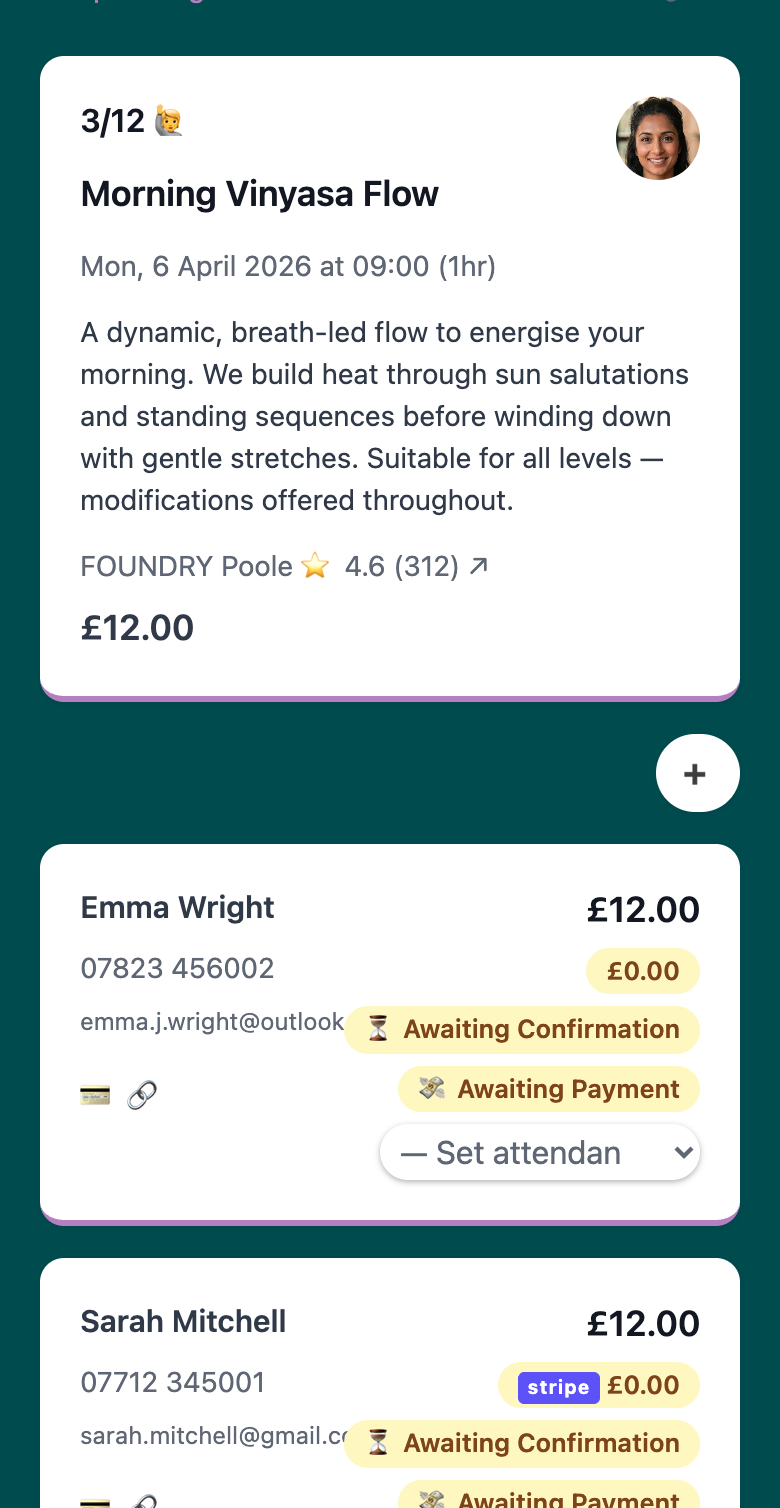
Bookings in Woven have a payment status that you can track and update from the class attendee view:
- Awaiting Payment — payment expected but not yet received
- Paid — payment collected (via Stripe or marked manually)
- Awaiting Refund — payment received, refund in progress
- Refunded — refund issued
- Void — booking cancelled or invalidated; terminal state
You can update payment status manually when payment is collected outside Woven — cash, bank transfer, or any other method. Stripe payments update status automatically when the client completes checkout.
Refunds
Refunds are handled through your Stripe dashboard. Woven does not process refunds directly. If you need to refund a client, log in to Stripe, find the payment, and issue a refund from there.
Related: