
How Waiting Lists Work in Woven
What happens when a class is full — how clients join the waitlist, how they're notified when a spot opens, and what you see in your admin.
When a class reaches capacity, Woven doesn’t just show a dead end. A waiting list opens automatically — clients can register their interest, and when a spot becomes available they’re notified via WhatsApp and can book it themselves. You don’t need to manage any of it.
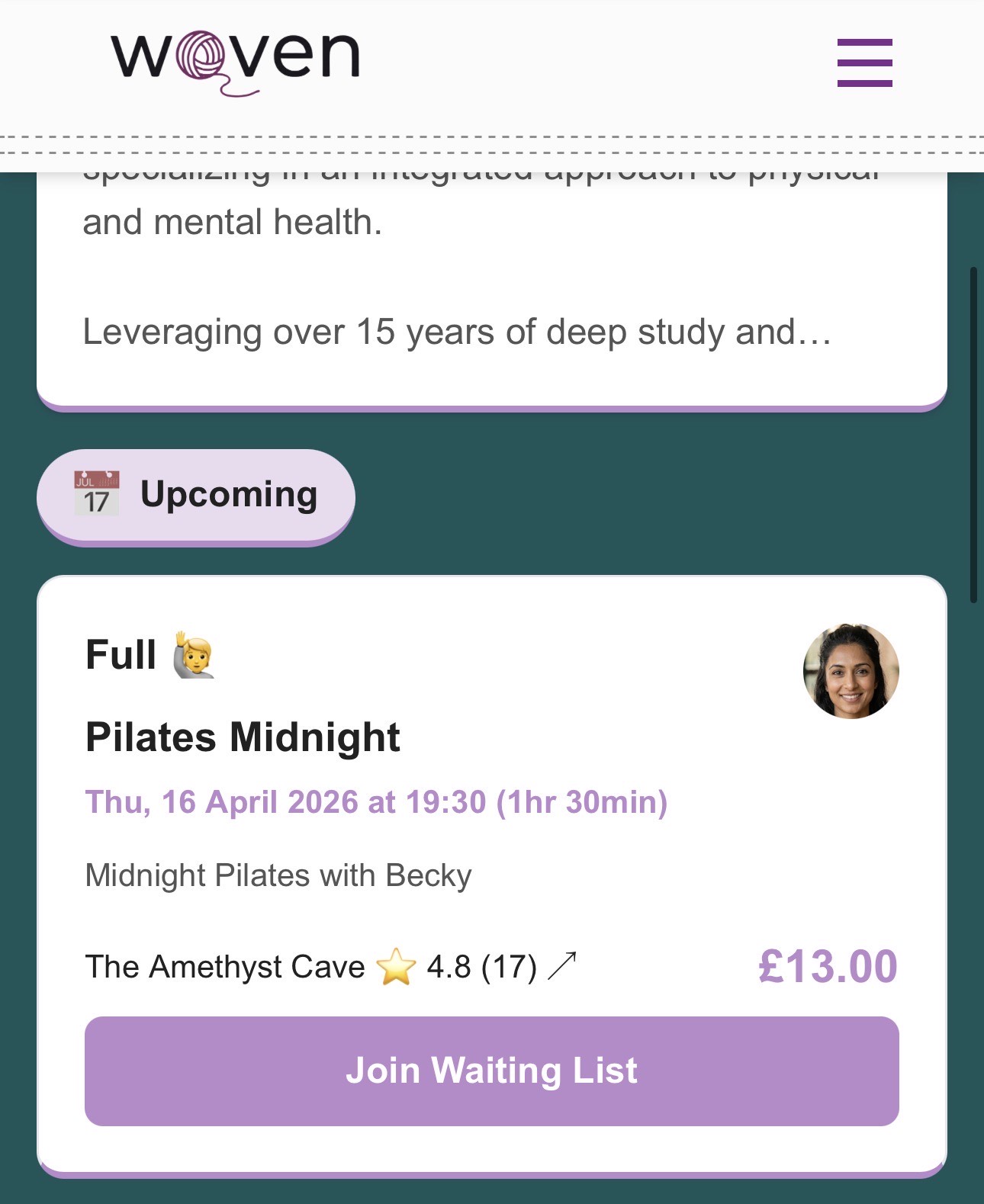
When a Class Is Full
Once a class reaches its capacity limit, the Book Now button on your public page is replaced by a Join Waiting List button. Clients who arrive too late to book see this instead of a “Sold Out” message — and can register their interest directly from the same page.
The switch happens the moment capacity is reached. If a booking is cancelled and a spot opens, the class becomes bookable again and the button switches back to Book Now for new visitors.
How Clients Join the Waitlist
When a client taps Join Waiting List, a short form appears inline on the class page. It asks for:
- Name — first name only
- Mobile number — this is where they’ll receive the WhatsApp notification if a spot opens
There’s no payment at this stage. Clients are registering interest only — no spot is reserved, no charge is made.
What Happens When a Spot Opens
When a booking is cancelled and a place becomes available, Woven immediately sends a WhatsApp message to every client on the waitlist. The message includes:
- The class name, date, and time
- A direct link to book the newly available spot
All waitlisted clients receive the message at the same time — there’s no queue ordering.
First to Pay Gets the Spot
The notification goes out to everyone simultaneously. Whoever books and completes payment first gets the place. Woven’s capacity check runs at the point of payment, so if two clients try to book at the same moment, only one will succeed — the other will see that the class is full.
This means:
- No manual queue to manage — you don’t decide who gets the spot
- No overbooking — capacity is enforced at checkout
- No chasing — clients self-serve from the notification link
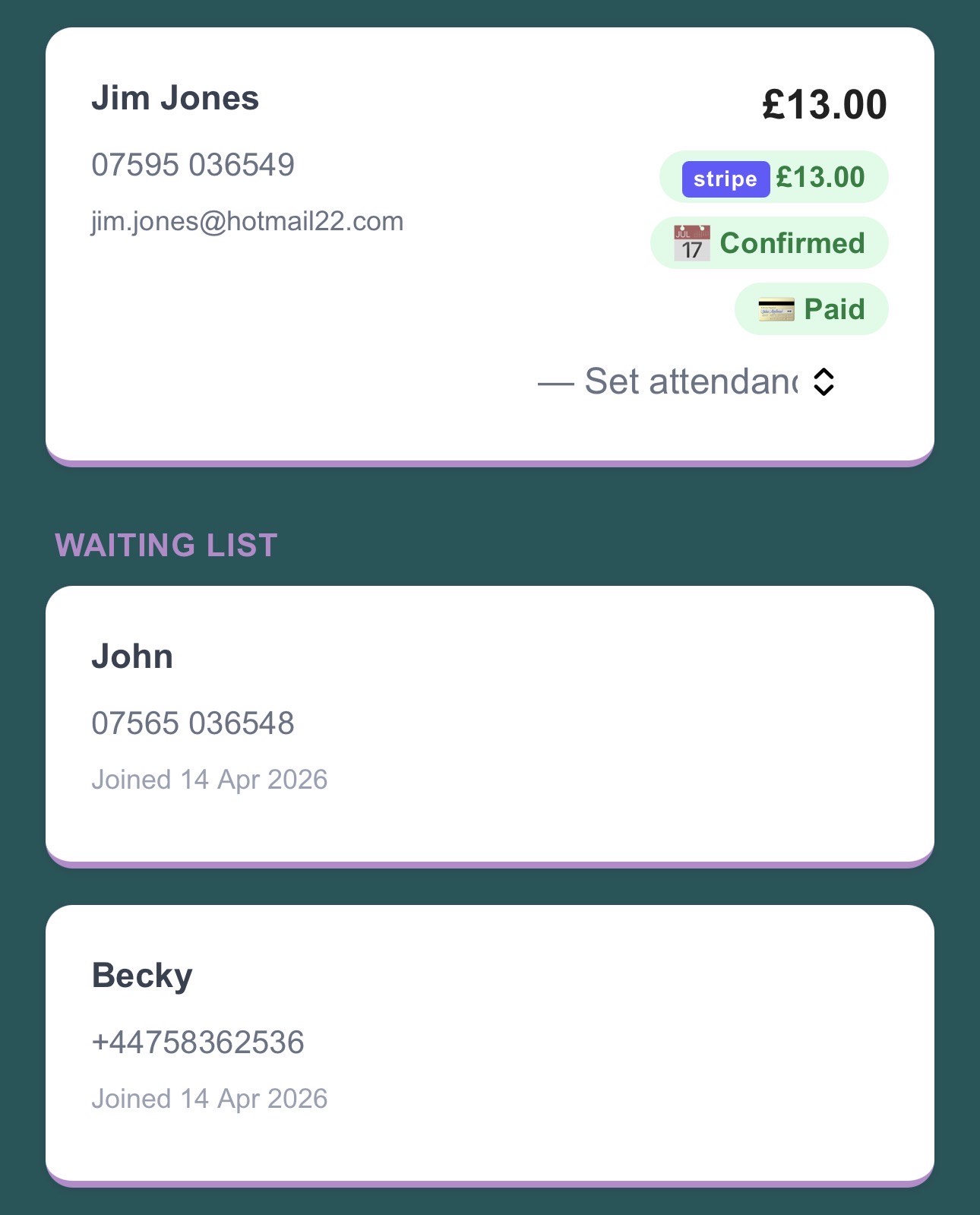
Seeing the Waitlist in Your Admin
On the class detail page in your admin, the waitlist is shown below the attendee list. Each waitlisted client appears as a card showing their name and phone number.
You can see at a glance who’s waiting, but there’s nothing you need to do with this list — notifications are sent automatically when a booking is cancelled.
Zero Admin Overhead
Once a class is published, waiting list management is fully hands-off:
- No manual notifications — WhatsApp messages go out the moment a spot opens, without you doing anything
- No queue ordering — you don’t decide who gets priority; the first to pay wins
- No follow-up needed — clients who don’t book simply stay on the list for future openings (if another cancellation occurs before the class)
- No risk of overbooking — capacity is enforced at the payment step regardless of how many people try to book at once
Related: