
How Online Booking Works for Your Clients
A walkthrough of the client booking experience in Woven — from your public page to the confirmation.
When a client books one of your classes, they go through a simple, mobile-friendly flow — no account creation, no app download, no friction. This article explains exactly what your clients experience.
Your Public Page
Every Woven business gets a public page at a unique URL (for example, thankswoven.com/marketplace/business/your-business). This is the starting point for all client bookings. Your public page shows:
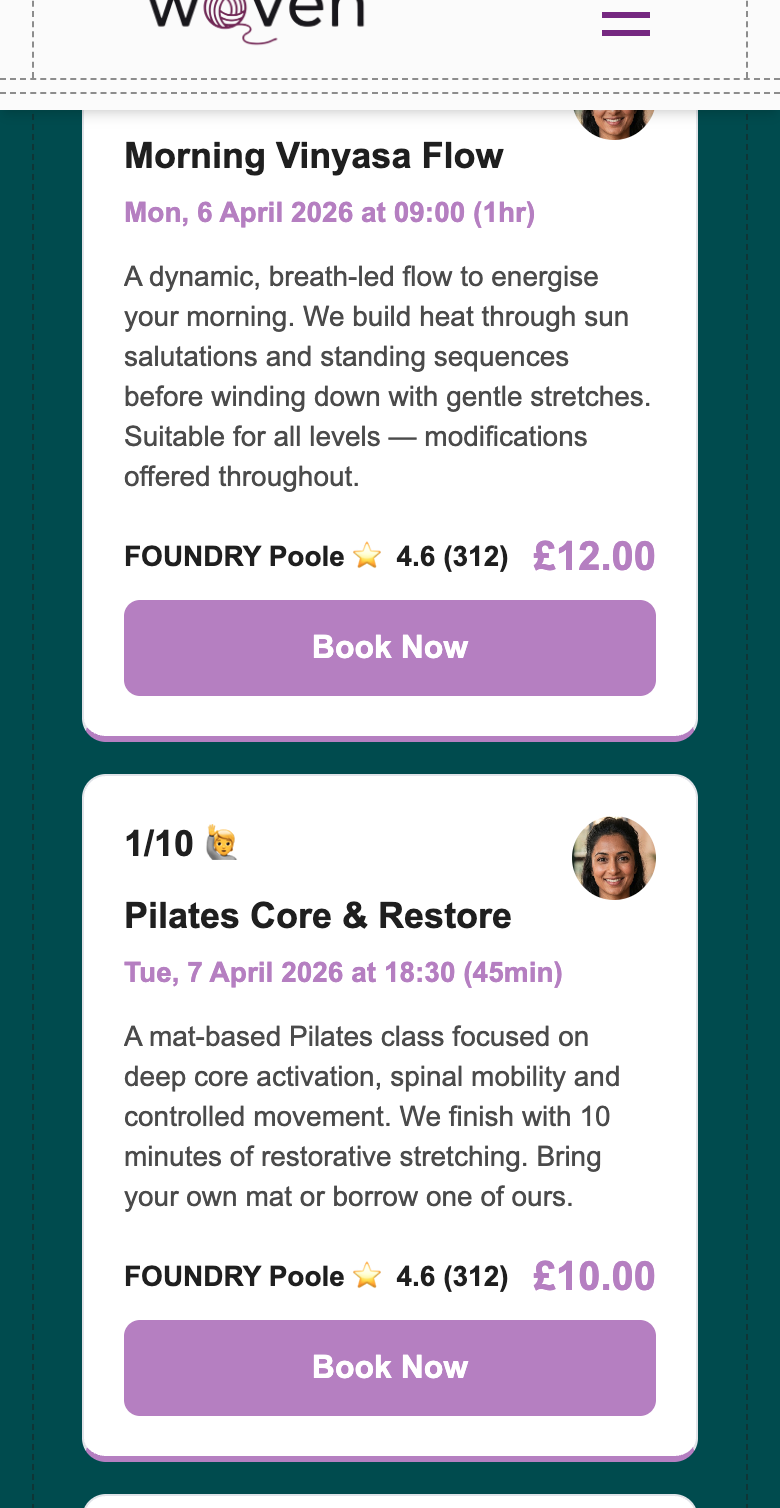
- Upcoming classes — name, date, time, location, duration, and price
- Your profile — your name, photo, title, and bio
- Your business details — logo, description, and locations
Clients can find your page via a link you share — in WhatsApp, on your website, in your email signature, or anywhere else you choose to put it.
Sharing a Specific Class
Every class also has its own unique link. When a client opens a class-specific link, they land on your public page with that class shown first — no hunting through the schedule.
These links are pre-formatted for sharing: when shared in WhatsApp, iMessage, or on social media, the preview automatically includes the class name, date, time, location, and price. You can find the link for any class from your admin and share it directly with the clients you want to invite.
Browsing and Selecting a Class
On your public page, upcoming classes are listed in date order. Each class card shows the key details at a glance: when it is, where it is, how long it runs, and what it costs.
When a client taps on a class, they’re taken to the booking page for that specific session. The page shows the full class details and a button to proceed.
Completing the Booking
Clients don’t need to create an account or log in to book. The booking flow collects only what’s needed:
- Name (first name)
- Phone number — this is how Woven identifies them and how booking confirmations and reminders are sent via WhatsApp
- Payment — handled securely through Stripe, which accepts all major debit and credit cards (Visa, Mastercard, American Express), Apple Pay, and other payment methods depending on browser and device
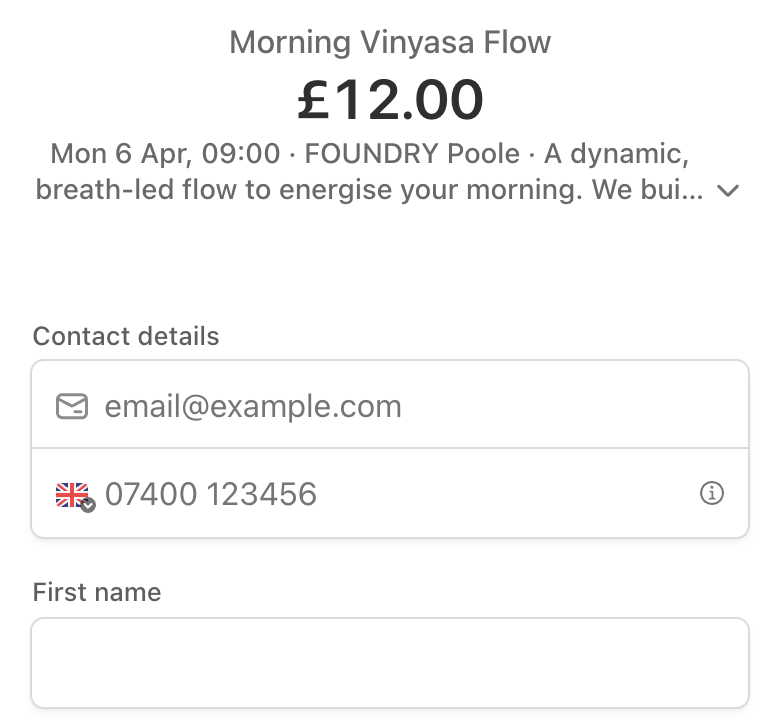
Once payment is complete, the booking is confirmed. Your client sees a confirmation screen and receives a WhatsApp message confirming their place.
What Clients Receive
After booking, clients receive a WhatsApp confirmation from your Woven assistant. This message includes the class name, date, time, and location. They’ll also receive a reminder before the class — you don’t need to do anything manually.
If a Class is Full
If capacity is reached before a client completes their booking, they’ll see a message letting them know the class is full. They’re redirected to your public page to check other available sessions.
A Note on Client Records
When a client books for the first time, Woven creates a client record for them linked to their phone number. This record is how Woven tracks their bookings, attendance, and payments over time. There’s nothing the client needs to do — it happens automatically when their first booking is confirmed.
Related: