
How to Set Up Your Business Profile in Woven
Configure your business name, logo, colours, and personal bio so your public page reflects you and your brand.
Your business profile controls how you appear on your public Woven page — the page clients visit to book your classes. Getting this set up well means clients arrive on a page that looks like you, not a blank placeholder.
Where to Find Your Profile Settings
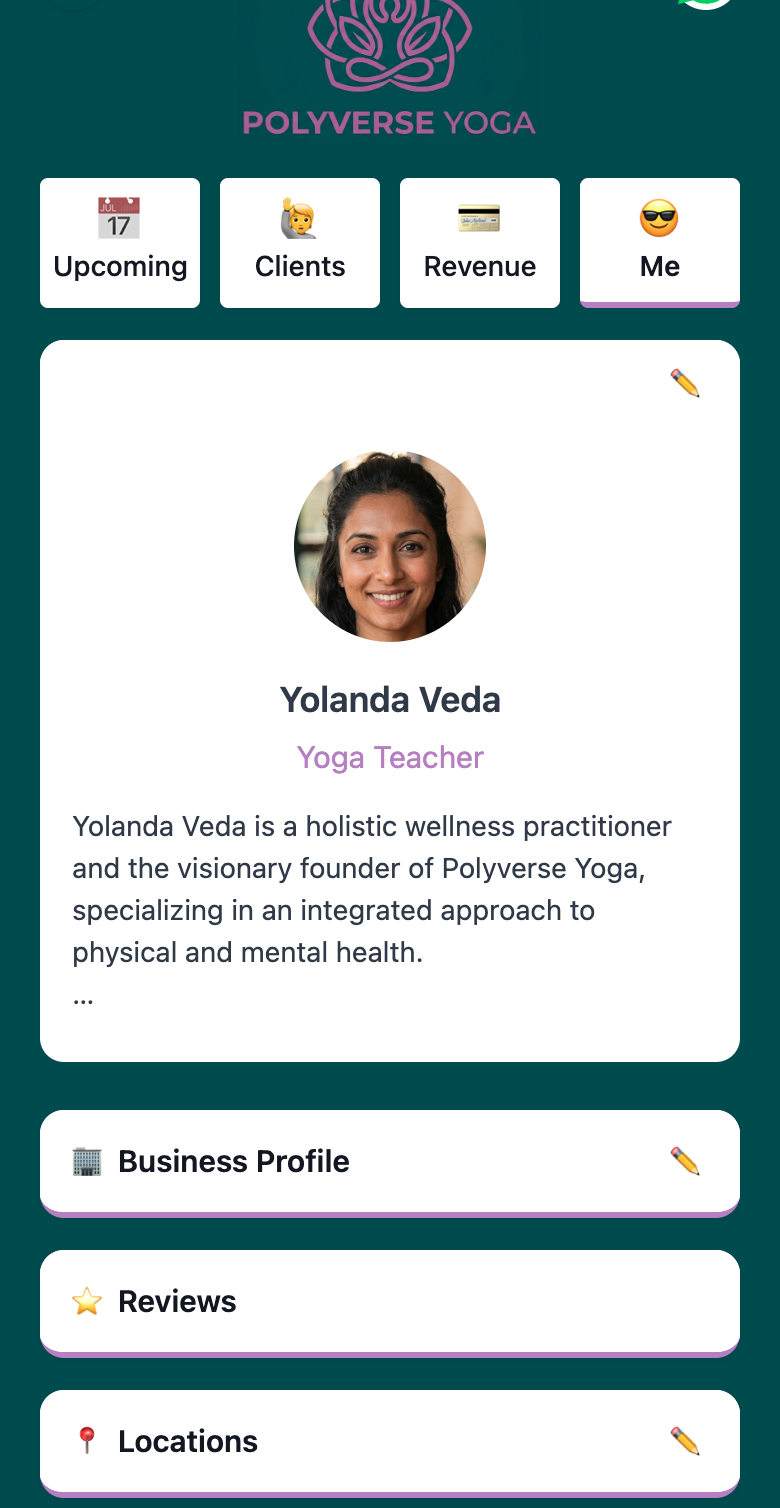
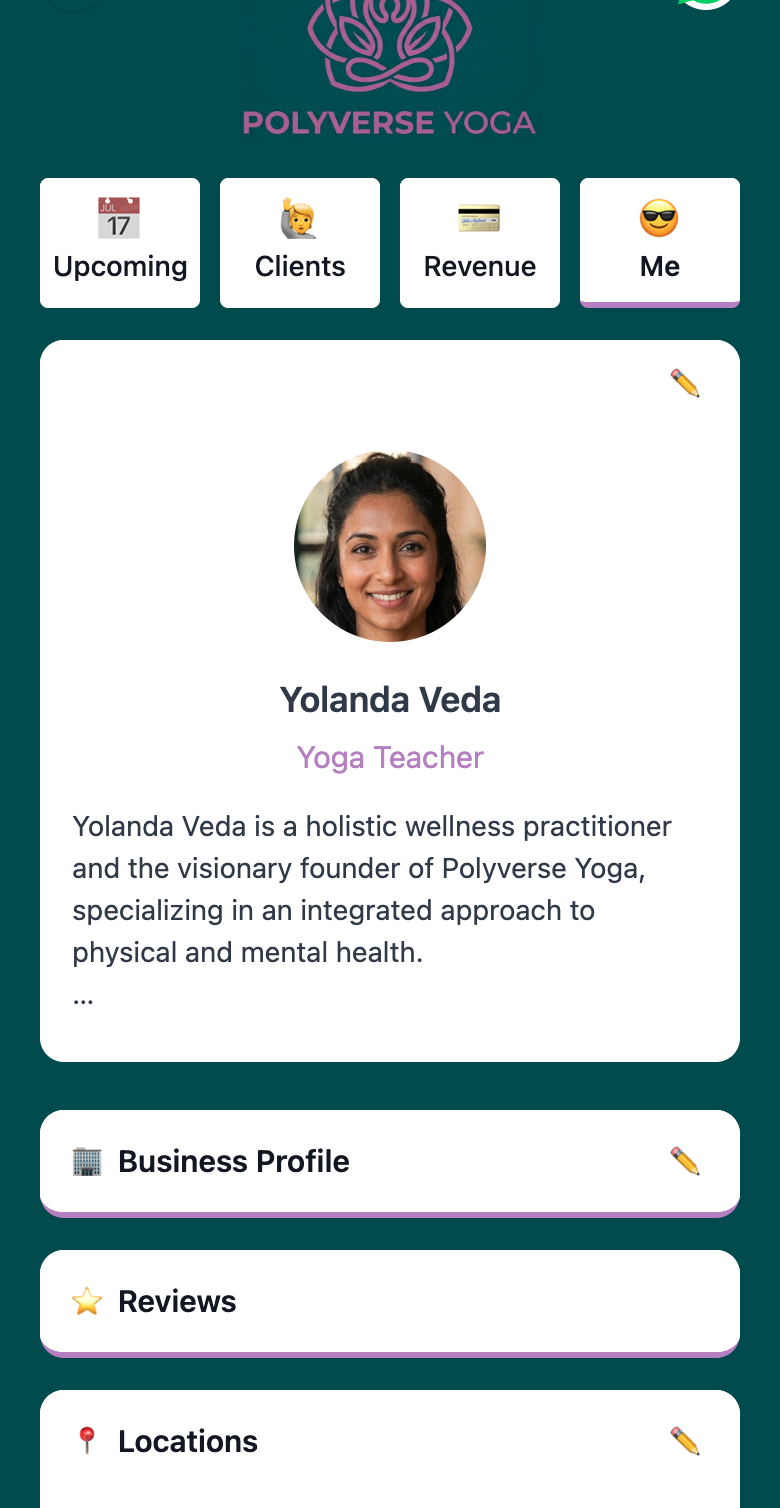
Profile settings live in the Me section of your admin. There are two parts: your personal bio and your business details. Both appear on your public page and are editable at any time.
Your Personal Bio
The personal bio is about you as the teacher or practitioner. This is what clients see when they want to know who’s leading the class.
Fields you can set:
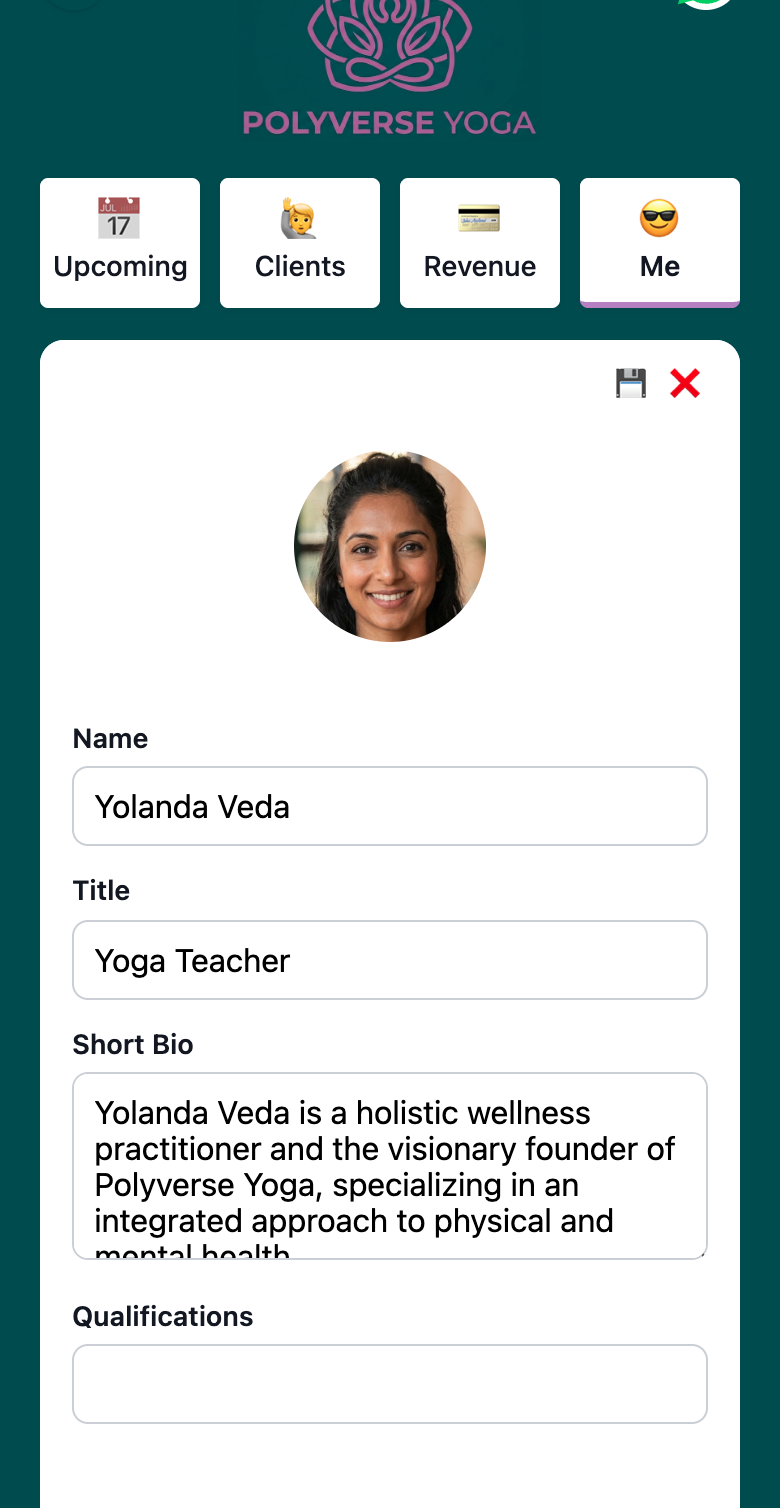
- Name — your name as you want it displayed to clients
- Title — your role or speciality (e.g. “Yoga Teacher”, “RYT-200 Certified”)
- Short bio — a paragraph about your background, approach, or philosophy. Keep it personal — clients book people, not businesses
- Qualifications — certifications, training, or credentials
- Photo — tap your avatar to upload a photo. A clear headshot works best
Tap the ✏️ icon in the top right of your bio card to open the edit form.
Your Business Details
The business section is for your brand identity — the business name, logo, and visual style.
Fields you can set:
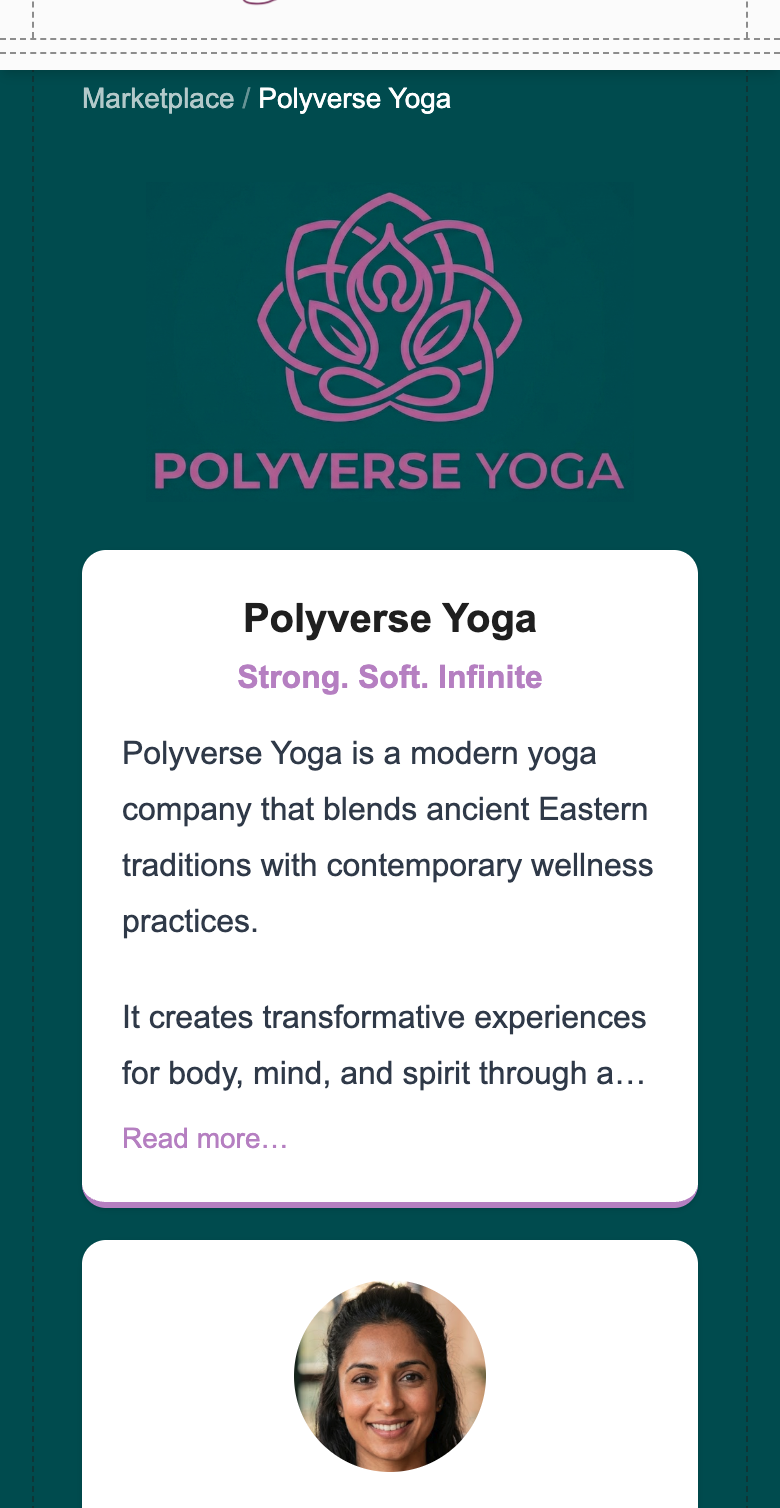
- Company name — your business or studio name, shown prominently on your public page
- Logo — upload a rectangular logo image. Any aspect ratio works; Woven crops and scales it appropriately
- Company blurb — a short description of your business (up to 500 characters). What you offer, who it’s for, what makes you different
- Tagline — a short phrase shown on your marketplace listing (max 200 characters)
- Primary colour — the accent colour used on your public page. Use your brand colour if you have one, or pick something that suits your style. Enter a hex code or use the colour picker
- Background colour — the page background. Defaults to a light grey (#f9fafb) if left blank
Your chosen colours are applied across both your public page and your admin view.
Your Public Page URL
Your public page is live at /marketplace/business/[your-slug]. The slug is set when your account is created and can’t be changed by you directly. Share this link wherever you want clients to be able to book — WhatsApp, Instagram bio, website, email signature.
Adding FAQs
Your public page can include a FAQ section — answers to common questions clients might have before booking. FAQs appear on your public page and help clients feel informed before they arrive.
You can add and edit FAQs from the Me page. Each FAQ has a question and an answer. A few examples of what works well:
- What should I bring to class? — mat, water bottle, what to wear
- What can I expect if it’s my first time? — what to arrive early for, what the class structure looks like, how to let you know it’s their first session
- What is your cancellation policy? — how much notice you need, whether sessions can be rescheduled
- Is the class suitable for beginners? — level guidance so clients can self-select the right session
- Where do I park? — practical detail that removes a friction point before it becomes a question
A short, honest FAQ section reduces the “is this right for me?” hesitation that stops people from booking.
Adding Locations
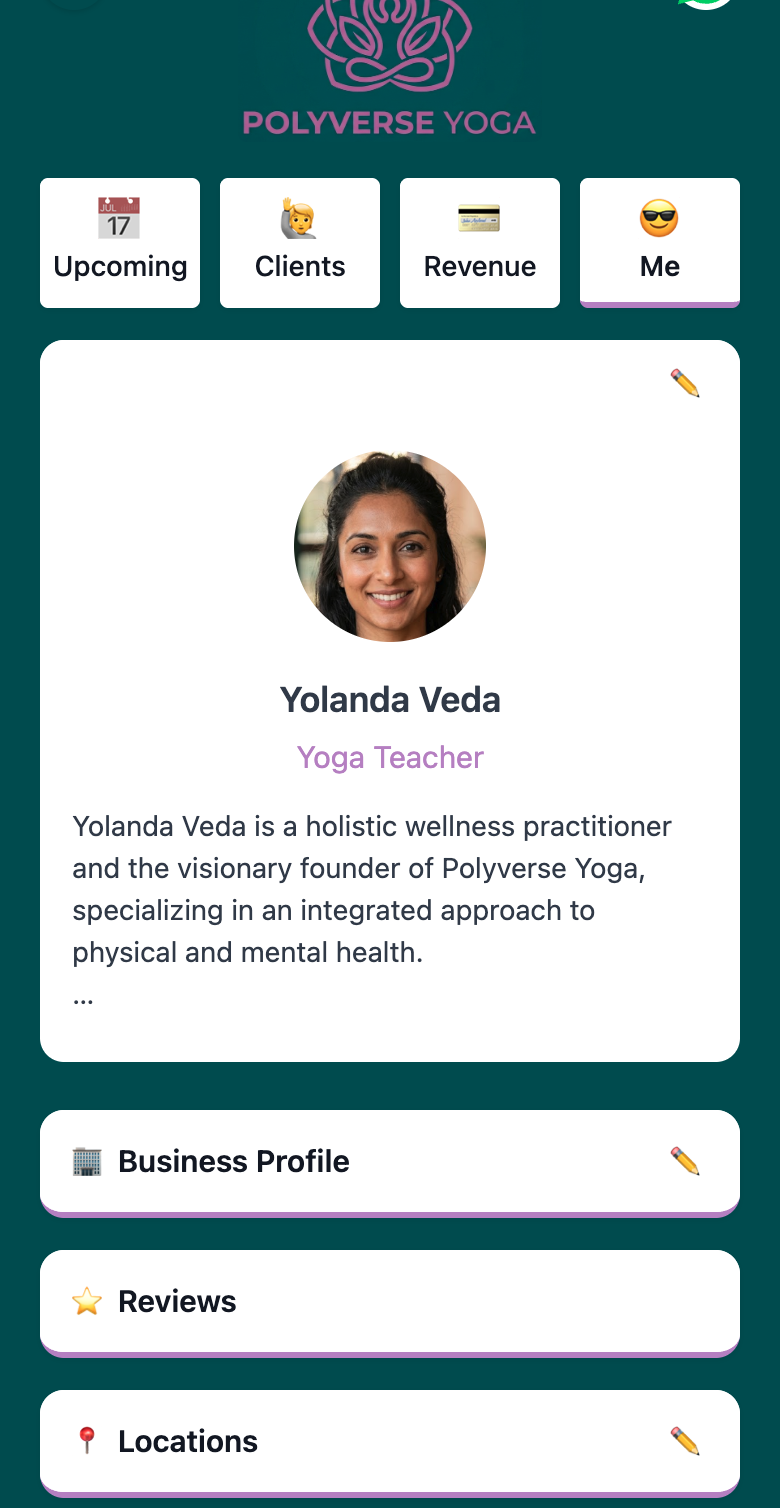
If you teach at a fixed venue (or multiple venues), add your locations from the Me page. Each location can have a name, address, and a link to Google Maps. Locations appear on your class cards and help clients know where to go.
To add a location, tap Add location in the Locations section and search for the venue. Woven pulls the details from Google Places — select the right result and save.
How Your Profile Appears to Clients
Once set up, your profile is live immediately on the Woven marketplace. Clients see your logo, tagline, company blurb, and your teacher profile — everything you’ve filled in.
Tips
- Add a photo. Pages with a photo feel significantly more personal. Clients are more likely to book when they can see who they’re booking with.
- Write a bio in the first person. “I’ve been teaching yoga for ten years” reads better than “Sarah has been teaching yoga for ten years” — it’s your page, speak directly.
- Keep the blurb focused. One or two sentences about what you offer is enough. You don’t need to explain everything — you need to make someone feel like they’re in the right place.
Related: