
Feature
Create, Schedule, and Fill Your Classes — Class Scheduling Software That Does the Admin
Class scheduling software with waitlists, visibility controls, virtual classes, attendance tracking, client reviews, and per-attendee pricing. No monthly fee.
Why Class Scheduling Is Harder Than It Looks
Running classes sounds simple — set a time, tell people, collect the money. What nobody tells you is how much admin builds up around the edges:
- You’re chasing bookings manually — taking names over WhatsApp, writing them in a notebook, hoping you don’t lose the thread
- Capacity is a guessing game — you’ve got no easy way to see exactly how many spaces are left without counting back through messages
- You don’t know who actually showed up — and when someone keeps missing sessions, you notice in the moment but lose track over time
- Every class lives in isolation — no record of what filled, what didn’t, who’s attending regularly and who’s drifting
Class scheduling software should solve all of this. Most of it solves the easy part — putting a booking form online — and leaves the harder parts to you. Woven covers the full journey: create a class, preview it, publish it, fill it, track attendance with granularity that actually matters, and build a picture of your client engagement over time.
Control Who Can Find Your Classes
Not every class is for everyone. Some sessions are for your existing clients only. Some are invite-only. Some you want to fill from your own WhatsApp group before opening them to the wider world.
Woven gives you a visibility toggle on every class: Public or Private.
Public classes appear on your marketplace page — anyone who finds your page can see them, browse the details, and book directly. This is the default. It’s how you get found by new clients.
Private classes are hidden from your public marketplace page, but still fully bookable via their direct link. You share the link with exactly who you want. Nobody stumbles across a private class unless you’ve given them the URL.
A few things worth knowing:
- The toggle lives on the class edit form — one click to switch
- Changing visibility takes effect immediately. Going private removes the class from your public page at once; going public adds it back
- Existing bookings are unaffected by a visibility change — it only controls marketplace discovery, not access
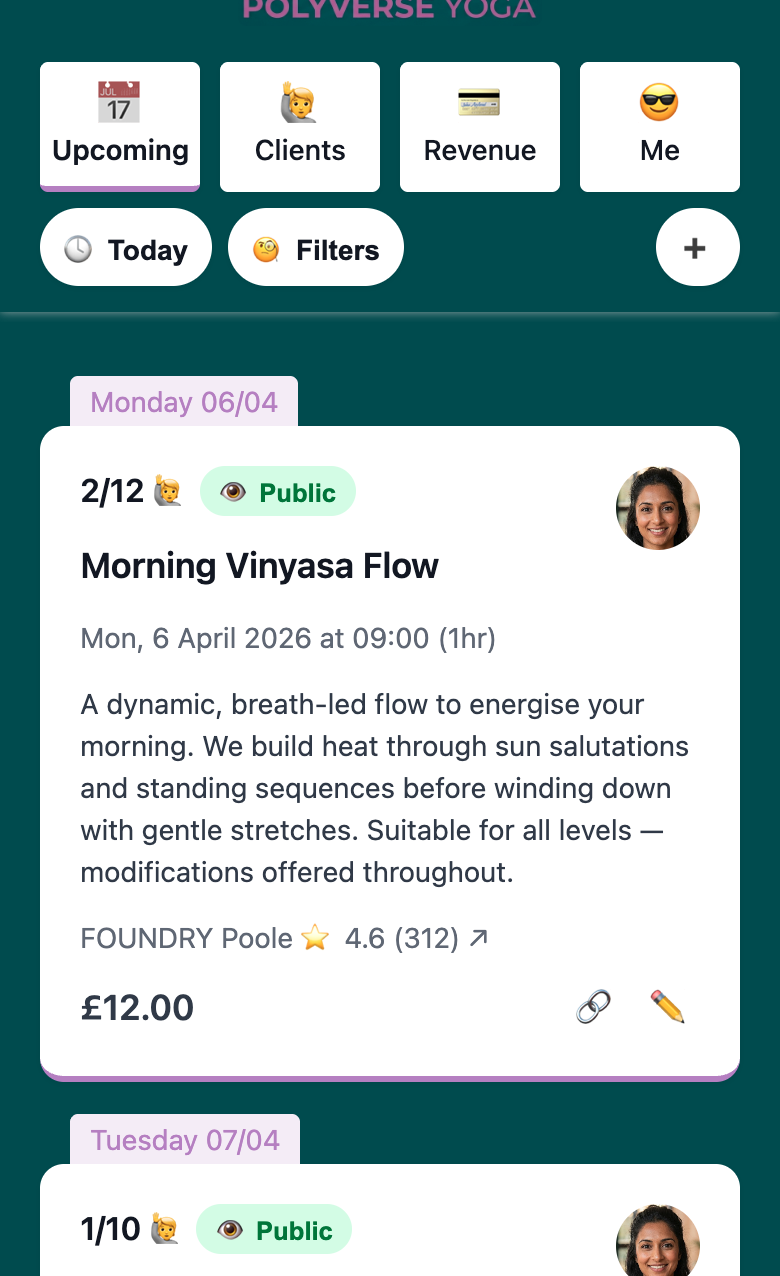
- Your admin dashboard shows each class’s visibility status (a 👁️ Public or 🔐 Private badge next to the attendance count) so your schedule is never ambiguous
This is how you run a hybrid business — open classes for discoverability, private sessions for your regulars, all from the same platform.
How your public marketplace page shows your classes →
Run Online and In-Person — Virtual Classes Built In
If you run any sessions online — via Zoom, Google Meet, Teams, or any other video platform — Woven handles the booking flow end to end, including protecting the meeting link until after payment.
When creating or editing a class, select 💻 Virtual from the location dropdown. A URL field appears — paste your meeting link. That’s it.
How the meeting link behaves across the booking journey:
- On your public page (before booking): Clients see ”💻 Virtual” as a plain label. The link is not visible or clickable. They know it’s online, but can’t access the meeting without booking first.
- After booking (thank-you page): The meeting link appears as a clickable link. Clients who have paid can access it immediately.
- In your admin: The full URL is visible and clickable at all times.
The paywall protection is automatic — you don’t need to set anything up differently. Whether you’re using Zoom, Google Meet, Microsoft Teams, or any other platform, you paste the URL once and Woven handles the rest.
Virtual and physical classes live side by side in your schedule. A hybrid business — some in-person, some online — runs from a single admin view with no extra configuration.
From Draft to Live — Class Publishing That Gives You Confidence
New classes start as drafts. They’re invisible to clients until you publish them — which means you can take as long as you need to get the details right without the risk of accidentally opening bookings for a class with the wrong time, wrong price, or missing location.
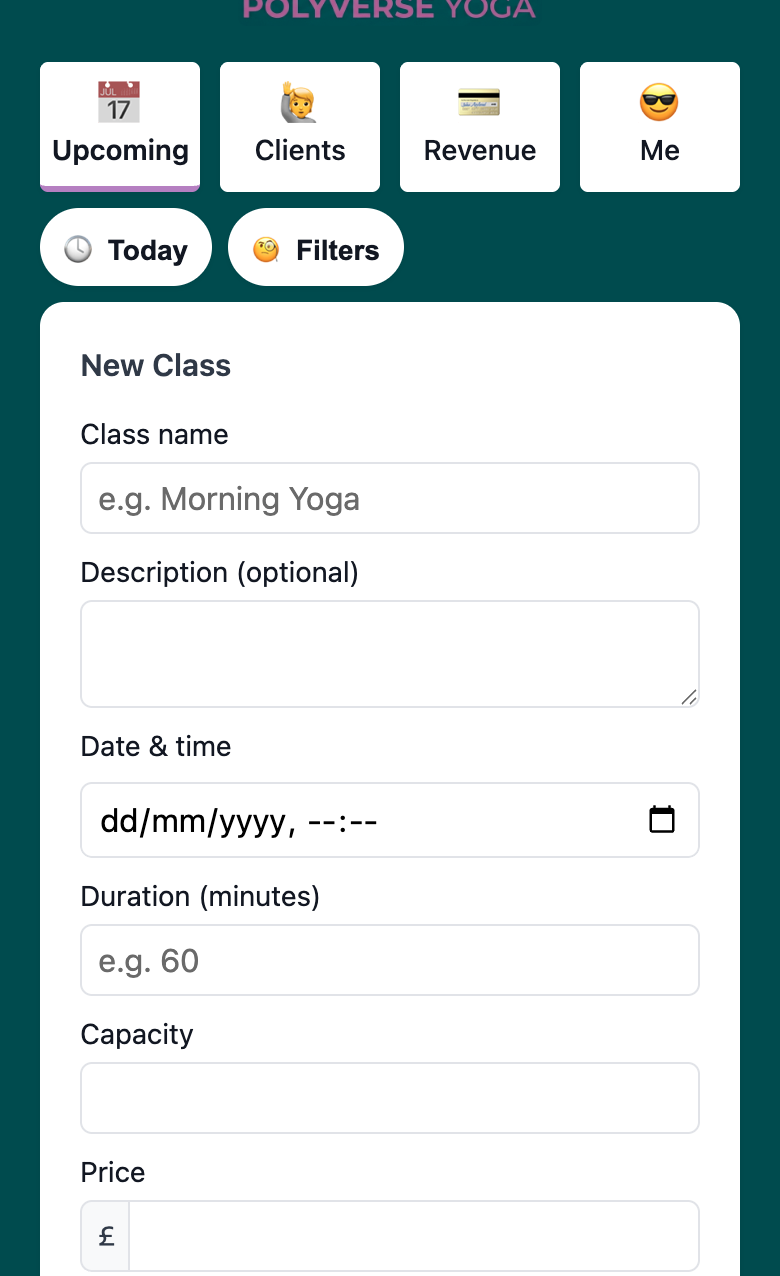
Creating a class takes about a minute. You fill in:
- Class name — what clients see on your public page (“Morning HIIT”, “Beginners Pilates”, “Wednesday Coaching Session”)
- Date and time — when the class starts
- Duration — optional, shown on the class card
- Capacity — the maximum number of bookings you’ll accept
- Price — set in pounds, or £0 for free sessions
- Location — select from your saved venues, or choose 💻 Virtual and enter a meeting URL
- Visibility — Public (appears on your marketplace page) or Private (hidden from marketplace, direct link only). Defaults to Public
- Description — optional context for clients looking at the class detail
Once created, you get a preview link — a private view of how the class will look on your public page before clients can see it. Check the details look right, then approve it. The class goes live immediately: it appears on your public page, the booking link is active, and the capacity counter starts tracking from zero.
Draft mode isn’t a workaround — it’s a deliberate part of the workflow. No accidental publishing, no last-minute corrections while clients are already booking.
Step-by-step: how to create your first class →
Class Scheduling and Capacity Management
Once a class is live, Woven tracks bookings against your set capacity automatically. Clients see how many spaces remain on your public page as they book — no inflated numbers, no ghost bookings.
A few things worth knowing about how capacity works:
- Capacity is enforced automatically — once a class is full, clients can’t book. No manual management, no awkward follow-up to say the class is actually full
- You can’t reduce capacity below existing bookings — if 8 people have booked and you edit the capacity to 6, Woven won’t allow it. Your commitments to clients are protected
- Each class has its own shareable URL — from the moment it’s published, you can drop the class link directly into a WhatsApp group, an email, or your Instagram bio. Clients land on that specific class, ready to book
Your admin dashboard shows all upcoming classes in date order. If you run sessions across multiple venues, the filter toolbar lets you narrow by location and date range — useful for getting a clean view of what’s happening at each venue without scrolling through your full schedule.
Waitlists — No Admin, No Queue, Just WhatsApp
When a class is full, that doesn’t have to be the end of it. Clients who miss out can join the waiting list directly from the public class page — they enter their name and mobile number, and they’re on the list.
When a spot opens from a cancellation, every person on the waitlist gets a WhatsApp notification with a direct booking link. First to pay gets the spot.
There’s no queue management on your end. No checking who’s next. No awkward messages asking if someone can make it. The system handles the notification; the client handles the decision. If nobody claims the spot, the class simply stays unfilled — you’re not on the hook for managing it.
A few things worth knowing:
- Anyone can join the waitlist — they don’t need an existing account or a prior booking with you
- All waitlisted clients are notified at once — it’s not a sequential queue; the first person to complete payment secures the spot
- No admin overhead — you don’t see the waitlist or manage it. The flow is entirely between Woven and the waiting clients
Attendance Tracking Software That Tells You More Than Just “Showed Up”
This is where most class scheduling software stops: a booking record with a yes/no attendance toggle. Woven tracks five distinct statuses — because the reason someone didn’t come is often as useful as the fact they didn’t.
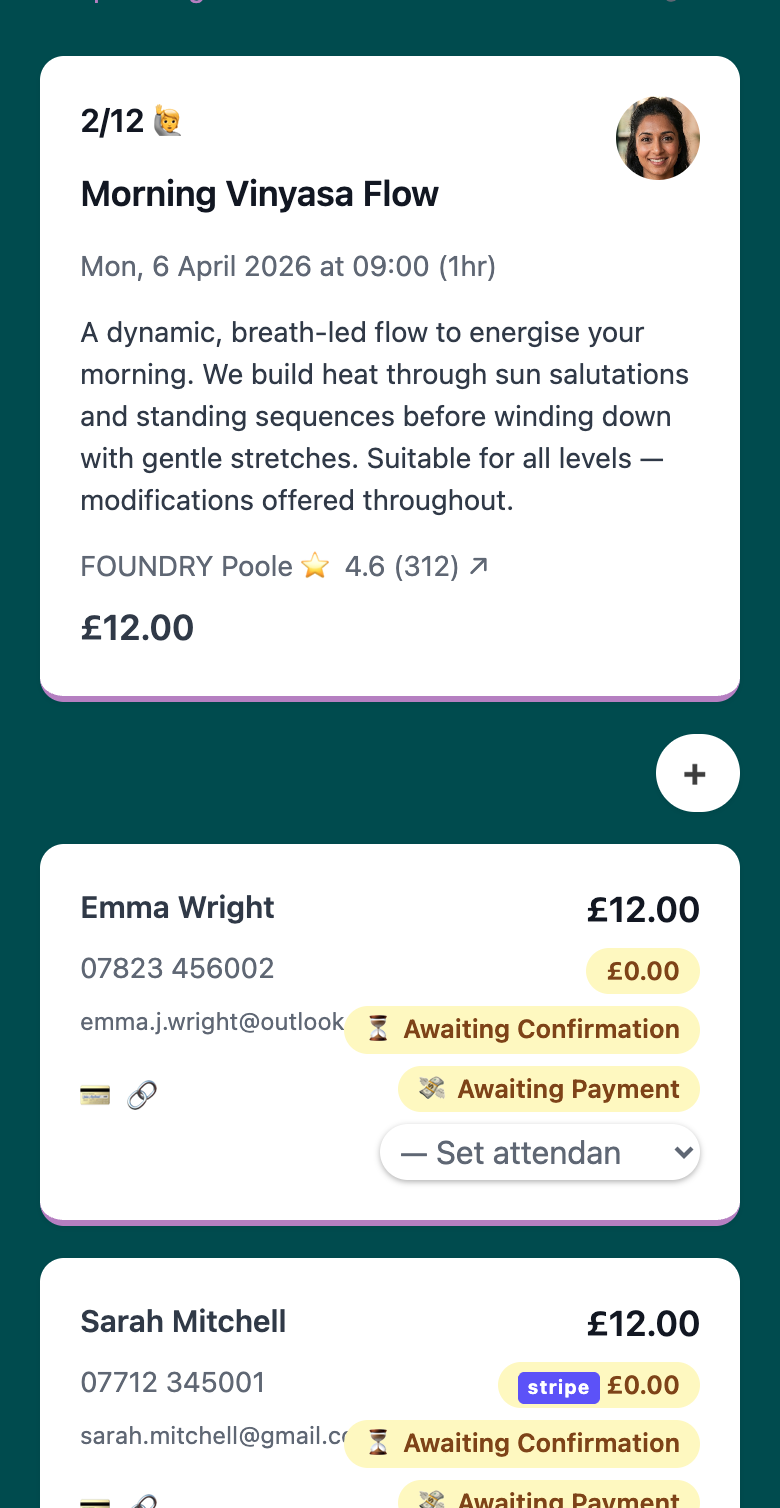
After each class, you record attendance per attendee from the class detail view:
- 🙋 Attended — showed up on time
- 🤨 Attended (Late) — showed up after the session started
- 👎 No Show (Notified Me) — didn’t come, but let you know in advance
- 🤢 No Show (Unwell) — didn’t come due to illness
- ⛔️ No Show (No Contact) — didn’t come, no message
The three no-show variants matter in ways that binary data doesn’t capture. A client who calls ahead to say they’re ill is behaving very differently from a client who silently disappears. That distinction shapes how you follow up — and whether there’s a relationship worth saving.
Attendance data builds into each client’s profile over time. Your client list becomes a picture of engagement across weeks and months:
- Track — record attendance after every session; takes seconds per class
- Spot — sort your client list by attendance rate to surface clients whose engagement is dropping
- Act — reach out before the relationship ends, not after. A quick WhatsApp when someone’s missed three sessions is far easier than trying to win them back after six
Managing your clients and their attendance history →
See attendance patterns across your whole client list →
Post-Class Reflection — Your Private Journal, Per Session
Most class management tools stop at attendance. Woven adds one more step: a private reflection on how the class actually went.
After each session, open the class detail and tap the 💭 Reflection tab. You get a star rating (1–5) and two prompts — What Went Well? and What Could Be Improved? — to capture what you’d keep and what you’d change.
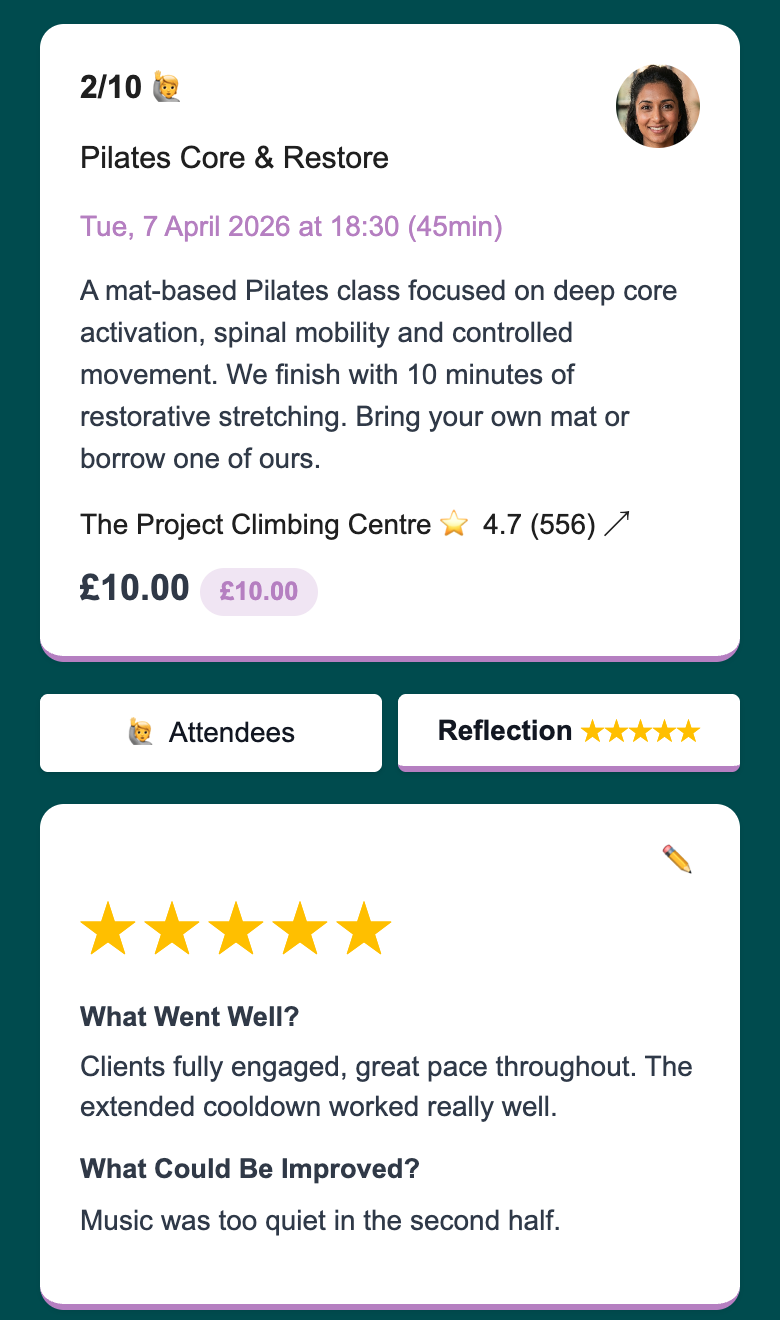
A few things worth knowing:
- Private to you. Clients never see your reflections — it’s an owner-only view.
- Editable any time. Tap the pencil to update your reflection. Useful if your thinking evolves after a night’s sleep.
- No pressure to fill everything. All three fields are optional. A star rating alone is a valid reflection.
Right now, reflections are per-class. Coming next: trend analysis across your history — spotting patterns by time of day, class type, student count, and rating over time. And when WhatsApp class reminders ship, you’ll get a prompt 15 minutes after each session so you can reflect while it’s fresh.
How to add a post-class reflection →
Client Reviews — Feedback That Builds Your Reputation
Reflection is what you know about the class. Reviews are what your clients say about it — and they’re the #1 trust signal for anyone deciding whether to book.
After a class, clients receive a unique review link via WhatsApp. The form is frictionless: a mandatory star rating (1–5), an optional text box, and nothing else. No login, no app to download. A new client on their phone can leave a review in under 30 seconds.
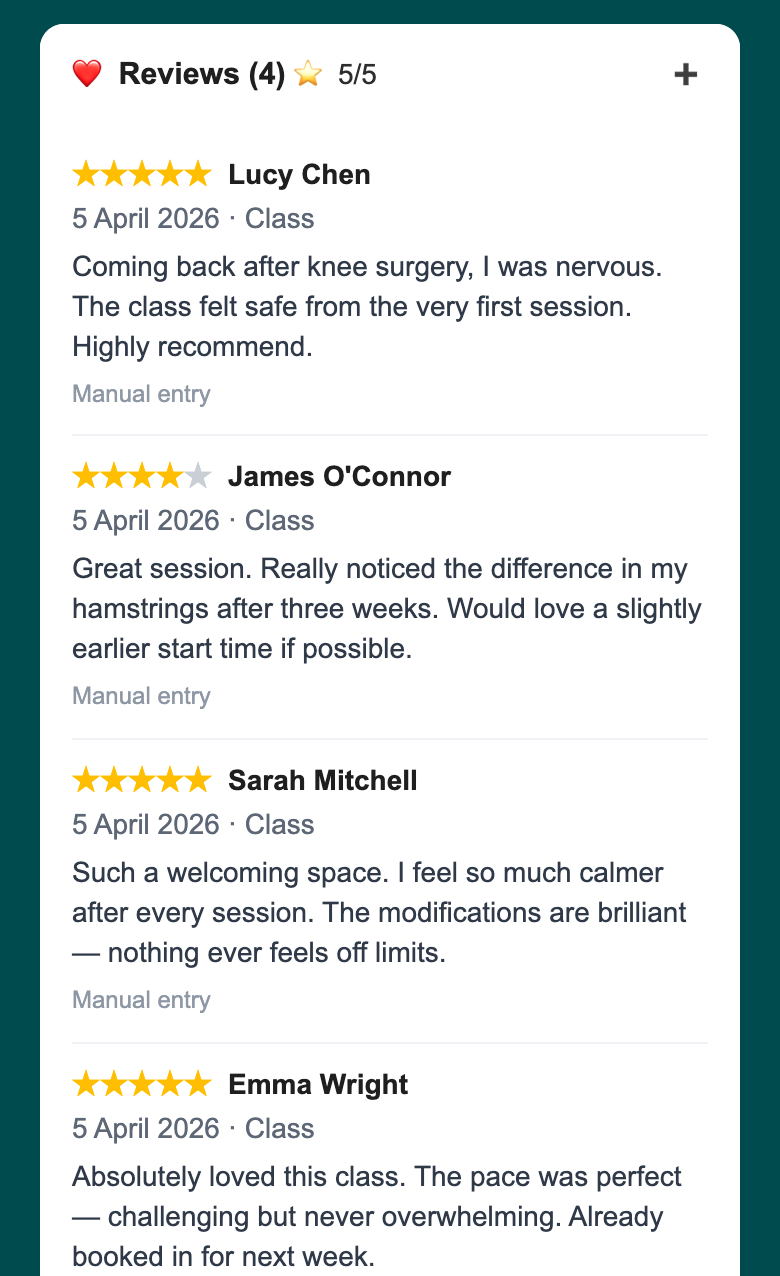
Reviews surface across your admin in four places:
- Your Me/Bio section — all reviews received, ordered by most recent. The section heading shows your review count and average rating at a glance:
⭐ Reviews (5) · 5/5. Add reviews from outside Woven (Google, verbal, Instagram DM) using the manual entry form — they’re attributed to a real client in your records. - Each class on your upcoming tab — a
⭐ {avg}indicator appears next to the attendance count for any class with at least one review. Clickable, so you can go straight to the attendees for that session. - Each attendee card — when a client has submitted a review for that specific class, it appears inline below the attendee details. Read-only: stars and any text they left.
- Each client’s profile — a star average for all reviews that client has left you, clickable through to their full review history.
Already have reviews on Google or Instagram? Use the manual review entry in your Me/Bio section. Select the client from your records, add the rating and text, and it appears in your reviews section alongside WhatsApp-sourced reviews. Reviews are tagged with their source (via WhatsApp or Manual entry) so you know where each one came from.
How reviews appear on your public page →
Pricing and Payment Links — Flexible Without Being Complicated
Each class has a default price set when you create it. That’s what most attendees pay. For everyone else, custom pricing is built in — per booking, not per class.
Before you generate a payment link for any booking, you can edit the price for that individual attendee. A concession rate for a student, a discount for a client who’s referred three friends, a one-off arrangement — you set a different price for that booking only, without touching the default for anyone else.
Payment links are valid for 24 hours (Stripe’s limit for checkout sessions). If a link expires before a client pays, regenerate it in one click — the booking stays on the class until you manually remove it. If you change a booking’s price while a link is already out, the existing link invalidates immediately so the client can’t pay the wrong amount. You regenerate at the new price before sharing it again.
Payment statuses track through the full lifecycle in your class view:
| Status | What It Means |
|---|---|
| ⏳ Awaiting Payment | Payment expected, not yet received |
| 💳 Paid | Payment collected via Stripe or marked manually |
| 💰 Awaiting Refund | Payment received, refund in progress |
| 💷 Refunded | Refund issued |
| ⛔️ Void | Booking cancelled or invalidated |
Your Classes, Live — What Clients See
Every published class appears on your public page in date order. Clients see the class name, date, time, duration, location (with a Google Maps link), price, and spaces remaining. Tapping the class opens the detail page and surfaces the Book Now button.
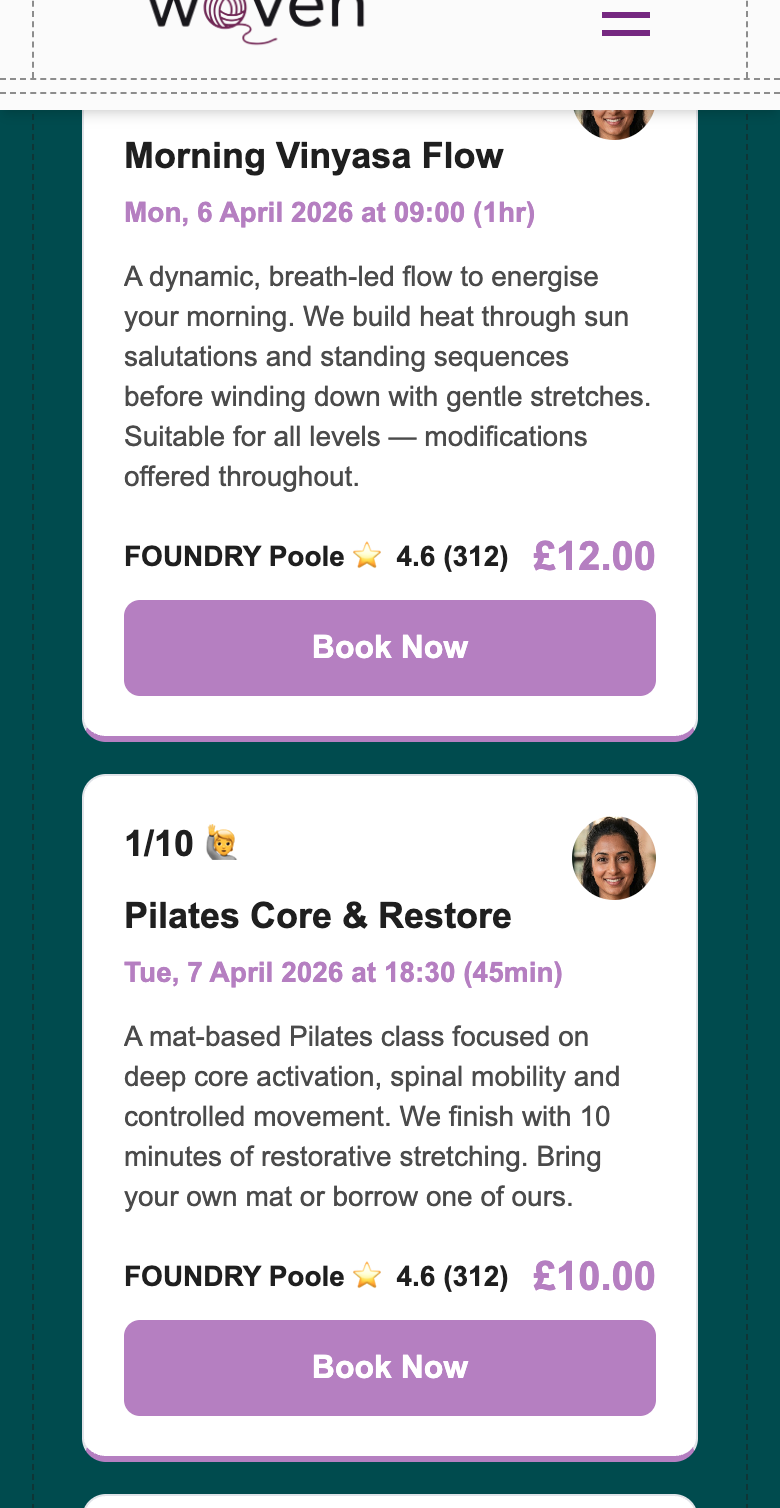
When a booking confirms, clients receive a WhatsApp message instantly — class name, date, time, and location. No email chain, no app to download, no account to create. The confirmation arrives in the app they already use, in the conversation thread they already have open with you.
How your clients experience booking →
How your public page and class listing work →
Coming Soon — Courses
Courses — multi-session packages where clients book and pay for a series of sessions together. Track progress across a course rather than session-by-session. Useful for anything structured over multiple weeks — bootcamps, programmes, beginner series.
🎉 Class Scheduling Software That Doesn’t Charge You for Breathing
Most class scheduling software charges a monthly subscription — £29 to £269 per month depending on the plan, whether you ran two sessions or twenty.
Woven doesn’t work that way. There’s no monthly fee. Woven charges a small per-transaction fee when your clients book and pay. Quiet month? You pay nothing. Your busiest ever month? Woven grows with you — the incentives are aligned, not stacked against you.
Tips for Getting the Most from Your Class Schedule
Use draft mode as a final check, not just a starting point. Before you approve any class, preview the link and look at it as a client would. Name, date, time, price, location — a 10-second check before publishing costs nothing and prevents an embarrassing correction message to all your booked clients.
Set capacity slightly below your real maximum. If the room holds 15, open 13 spots. Classes that fill feel more in demand. It also preserves a buffer for walk-ins or late arrangements without having to edit a live class mid-booking.
Record attendance reasons consistently, not just outcomes. The five statuses only tell you something over time if you use them consistently. Decide which category each scenario falls into — a client who WhatsApps you ten minutes before to say they’re running late is “Attended (Late)”, not “No Show (Notified Me)” — and use the same logic every time.
Edit individual booking prices before you send payment links. If you’re going to apply a concession or discount, do it before the link goes out. A price change after the link is sent invalidates it immediately — you’ll have to regenerate it, which is a minor friction for you and a confusing experience for the client.
Use the filter toolbar when you’re running multiple venues. Filtering by location and date range takes two seconds and turns a long mixed schedule into a clean view of what’s happening at each venue. Worth doing before every week’s final prep.
Reflect immediately after class, not the next morning. The 15 minutes after a session is when you remember what actually happened — the moment a client disengaged, the transition that didn’t land, the energy shift in the room. A quick star rating and two sentences while it’s fresh is worth more than a detailed write-up 12 hours later.
Enter your existing reviews before your first WhatsApp review link goes out. Your reviews section is visible on your public profile from the moment it has content. Use manual review entry to import two or three genuine reviews you’ve already received — from Google, social media, or verbal feedback — so new clients see social proof immediately, not an empty section.
Related:
- How clients book classes and what they see →
- Your public profile and how reviews appear →
- Track your clients and booking history →
Get started with Woven — create your first class in under a minute.