
Guide
Your Yoga Class Waiting List: How to Never Lose an Interested Student When a Spot Opens
Most yoga booking apps send a yoga class waiting list email — if they have the feature. Woven WhatsApps everyone instantly. First to pay gets the spot.
Every yoga teacher knows the moment: a class fills up, someone checks your online booking for your yoga classes page too late, and they’re locked out. They move on — to another teacher, another studio, a different time slot that works better anyway. You never hear from them again.
That gap between “class is full” and “spot just opened” is where students disappear. A proper yoga class waiting list turns it into a pipeline. Most booking software skips the feature entirely, or handles it in a way that still leaves you chasing people manually.
When a Full Class Becomes a Problem
A full class should feel like a win. It is — until someone cancels two days before.
The spot reopens quietly. No alert goes out. Your page just shows one more available space, visible to whoever happens to look. That might be a returning student, or it might be no one.
Most teachers patch this with a workaround:
- A WhatsApp group message: “Space just opened Thursday — first reply gets it”
- An email to whoever was asking recently, if you can find the thread
- A note on your desk with names to call when you get a minute
None of these work reliably. The three ways manual yoga class waiting lists fail:
- No notification at the right moment — by the time you notice the cancellation, the window for filling that spot has passed
- Wrong channel, wrong timing — an email sent yesterday doesn’t reach people who check their phone right now
- Double-booking confusion — two people confirm interest, you commit to one, the other is left in an awkward position
A waiting list should handle this automatically. The question is whether your software handles it well.
What Most Yoga Booking Software Gets Wrong About Waiting Lists
The major booking platforms do have waiting list features — but the way they notify clients matters more than whether the feature exists at all.
| Software | Has Waiting List | Notification Method | How It Works |
|---|---|---|---|
| Mindbody | ✅ Yes | Email; SMS via Ultimate plan ($499/mo) or Messenger[ai] add-on | Auto-add by queue position, or “First to Claim” SMS; two-way SMS requires Ultimate tier or paid add-on |
| Momoyoga | ✅ Yes | Next person in queue auto-added to class; confirmation email sent | |
| TeamUp | ✅ Yes | Push notification + optional SMS | Notifies when spot is confirmed; UK SMS supported |
| Woven | ✅ Yes | All waitlisted clients notified simultaneously; first to pay gets the spot |
Email, push notifications, and optional SMS are the common denominators. Momoyoga auto-fills the next person in the queue via email — neat, but the confirmation still sits in an inbox. Mindbody offers a simultaneous “First to Claim” SMS option, but it requires enabling a paid two-way SMS service that most teachers never set up. TeamUp sends a push notification and auto-adds the client to the class. None of them send a WhatsApp message. None of them put a single tap between the notification and a completed booking.
Woven does the opposite. When a spot opens, every person on the waiting list receives a WhatsApp message at the same moment. The message includes your class name, date, time, price, and a direct “Book Now” button. Whoever taps and pays first gets the spot. No queue. No waiting for person three to read their email.
See how Woven compares to Momoyoga and Mindbody →
How Woven’s Yoga Class Waiting List Works
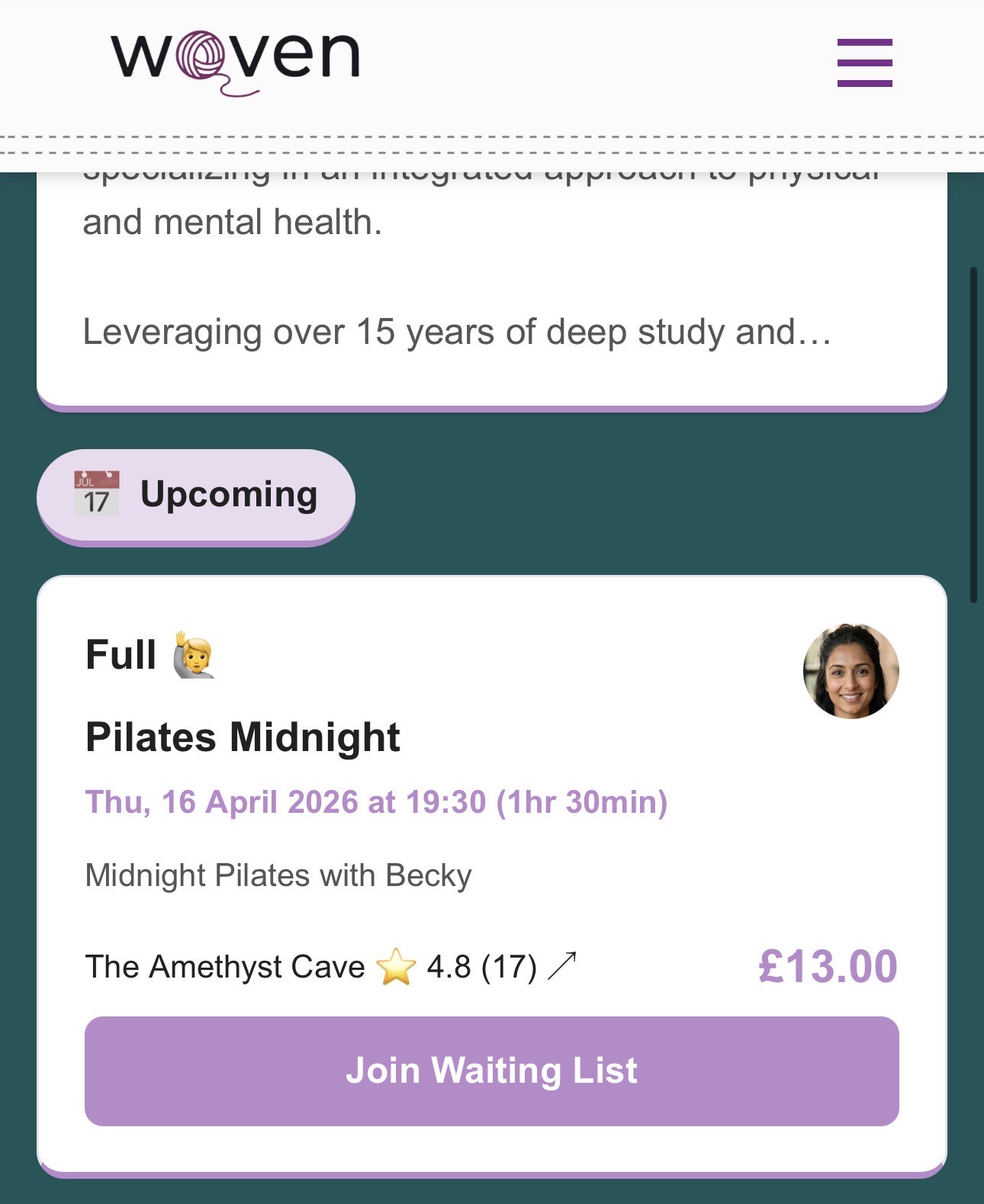
When your class reaches capacity, the booking page changes automatically. The “Book” button becomes “Join Waiting List” — no configuration needed, no toggle to switch on.
From the student’s perspective:
- They arrive at your booking page and see the class is full
- They tap “Join Waiting List” and enter their name and mobile number — no account required
- They receive a WhatsApp confirmation
- When any booking is cancelled and a spot opens, they receive a WhatsApp message: class name, details, price, and a “Book Now” button
- They tap, pay, and they’re booked. The spot is theirs.
From your perspective:
- Nothing. You don’t need to do anything.
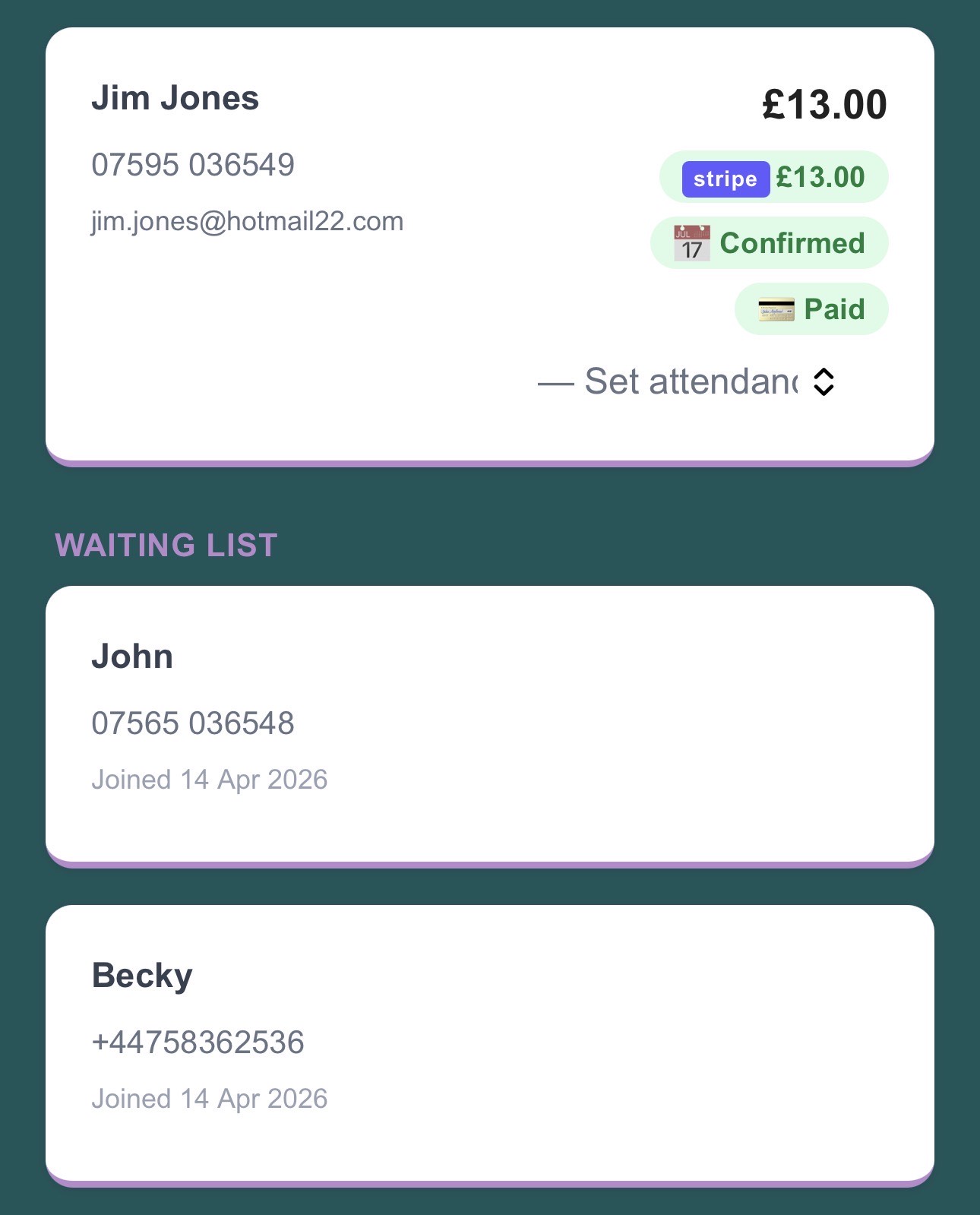
- On your admin class detail page, waitlisted clients appear as cards below the attendee list, ordered by when they joined
- When a cancellation triggers the notification, Woven sends WhatsApp messages to all waiting clients simultaneously
- The first to complete payment gets the spot; existing capacity limits prevent overbooking
- Once someone books from the waiting list, their entry is automatically cleared
The waiting list is part of Woven’s class scheduling features — built into how classes work, not bolted on as an extra.
What Happens on Your End as the Teacher
Zero. That’s the honest answer.
You don’t trigger the notification. You don’t manage a queue. You don’t manually message anyone. When a booking is cancelled — whether through Stripe’s expired checkout, a client cancellation, or you marking it cancelled in your admin — the waiting list check fires automatically.
A few things worth knowing:
- Your admin class page shows who’s waiting — name, phone, and when they joined. You can see it; you don’t have to act on it.
- Social proof works in your favour — when a class has people already waiting, the booking page shows the waitlist count. A full class with a queue tells prospective students demand is real.
- One failed send doesn’t stop the rest — if a WhatsApp message can’t be delivered to one waiting client, the others still receive theirs. Each notification is sent independently.
- Clients don’t need a Woven account — name and mobile number is enough. If they’ve booked with you before, Woven recognises them automatically.
Setting Up Waiting Lists for Your Yoga Classes on Woven
There’s no setup step.
When a class reaches capacity, the waiting list activates. When a cancellation happens, the notification fires. Every Woven class has a capacity — that’s all you need.
For a complete walkthrough — how the WhatsApp message looks, where clients appear in your admin, what happens when multiple waiting clients try to book at the same time — read how Woven’s waiting list works step by step →.
Tips for getting the most from a full class:
- Keep your class capacity honest — a too-high capacity means fewer people on the waiting list and less urgency when a spot opens. Set it to reflect the experience you actually want to deliver.
- Tell students your popular classes fill up fast — a waiting list is social proof. Mentioning it in your class description or on social sets the expectation that demand is real and worth acting on.
- Verify your WhatsApp number is live before relying on waitlist notifications — Woven sends via a registered 360dialog WhatsApp template. If you haven’t completed WhatsApp onboarding, messages won’t go out. Check your settings first.
- Don’t manually message waitlisted clients after Woven sends the notification — double-messaging creates confusion about which booking link is valid. Let Woven handle it.
Related: