
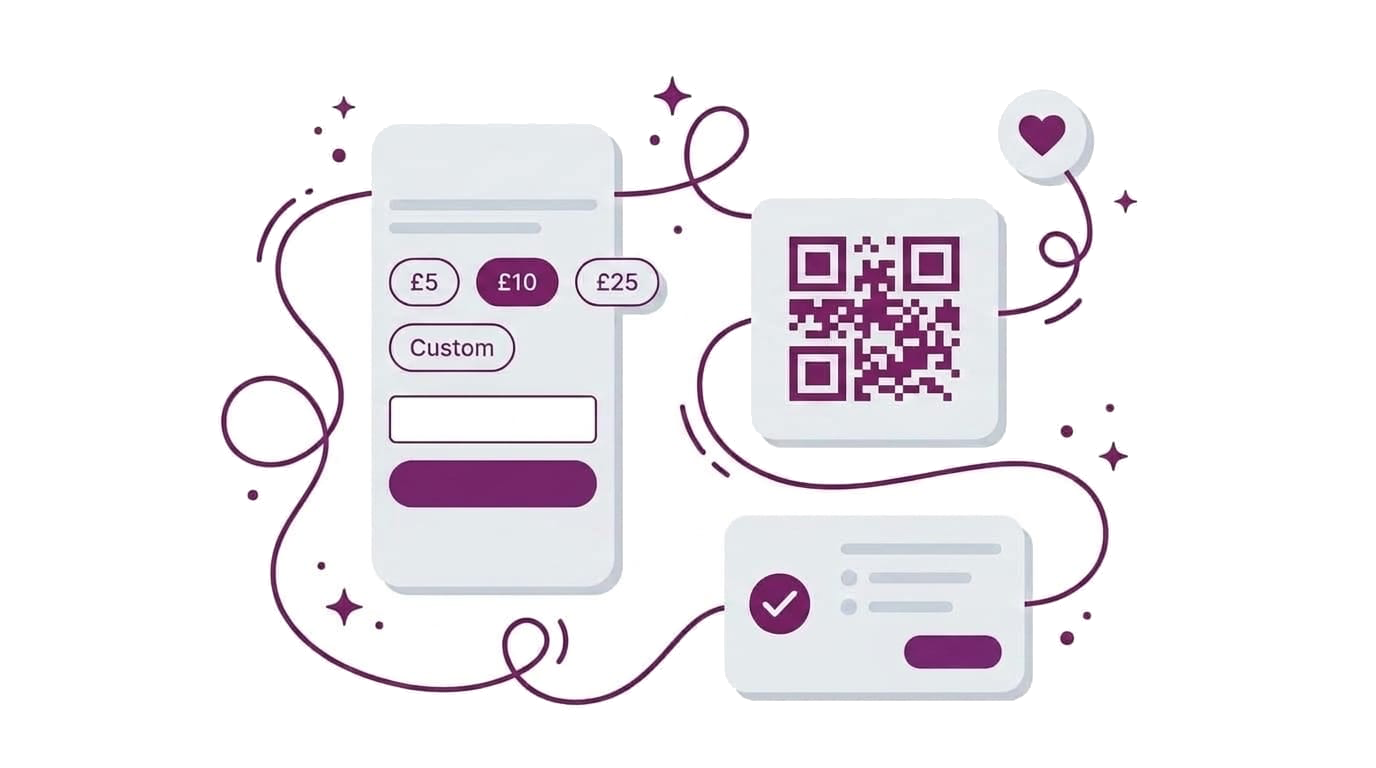
Feature
Accept Donations Online — QR Codes, Custom Amounts, Auto-Enabled with Stripe
Accept donations online for small business — no charity status required, low platform fee same as bookings, QR codes built in, auto-enabled with Stripe.
Why Small Businesses Are Adding Donation Links
Most business owners assume donations are for charities. The word conjures charity numbers, Gift Aid submissions, and registered organisations with dedicated fundraising pages. But small businesses with loyal regulars — studios, classes, community spaces, teachers with clients who genuinely want to say thank you — are leaving real goodwill money on the table every week.
The problem is structural. Right now, the only way a client can financially support their teacher or their favourite space is to book another class. There is no mechanism to round up to the nearest tenner, leave a voluntary “thank you” contribution, or say “that session was worth more than I paid.” The goodwill is there. The infrastructure isn’t.
For businesses already running online booking for their classes and clients, donations fill a gap that booking alone can’t cover:
- Clients want to give extra; there’s nowhere to send it
- Teachers feel awkward asking directly — a verbal request changes the dynamic of a session
- A “pay what you feel” class has no mechanism — everyone pays the stated price or walks away
- QR codes on class printouts link nowhere useful, or to a third-party charity platform that takes a cut
- Tips and voluntary contributions end up handled by bank transfer or cash, with zero admin trail and no attribution
That’s what Woven donations solve — a way for small businesses to accept donations online without charity status or a separate platform.
How to Accept Donations Online — The Woven Way
If you’ve set up Stripe for bookings, you’re already done. Woven’s donation feature enables automatically the moment your Stripe Connect account is active — no settings toggle, no separate setup, no new account to create.
Here’s how the end-to-end flow works:
- Connect a Stripe account to Woven (required for bookings anyway — see payments →)
- Donation feature enables automatically — no action needed on your part
- Your donation link and QR code appear on your profile page immediately
- Share the link via WhatsApp, social media, or print the QR code for your class
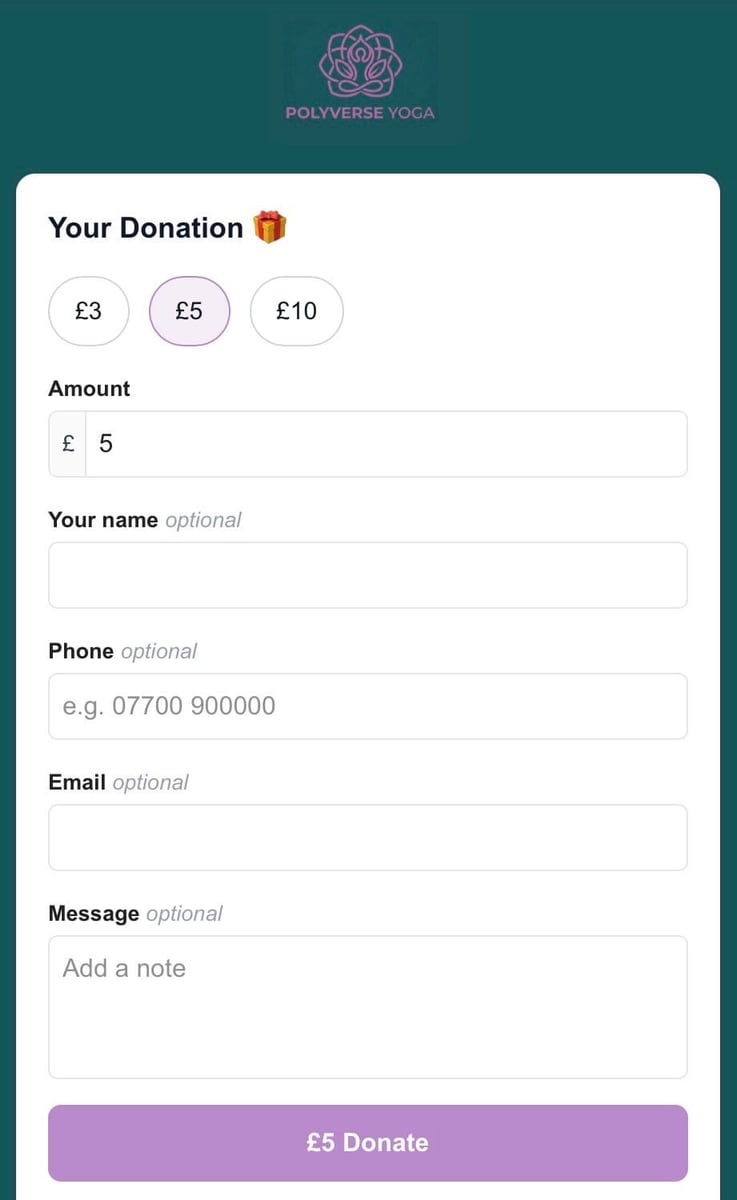
- A donor opens the link, picks an amount from the chip selector or enters a custom figure, and pays via Stripe Checkout
- Money lands in your Stripe Connect account — the standard Woven 1.5% platform fee and Stripe’s card processing fee come out of the donor’s amount, the same model as bookings
Your public donation page lives at /marketplace/business/{your-slug}/donate. Each class you create also gets its own donation URL with a class parameter, so donations can be tied back to a specific session in your admin. If Stripe’s charges or payouts aren’t yet fully enabled on your account, the page shows a “not currently accepting donations” notice in place of the amount picker — a prompt to finish Stripe setup.
Your Donation QR Code — Print It, Share It, Track It
Every Woven business gets two types of donation QR code, generated automatically.
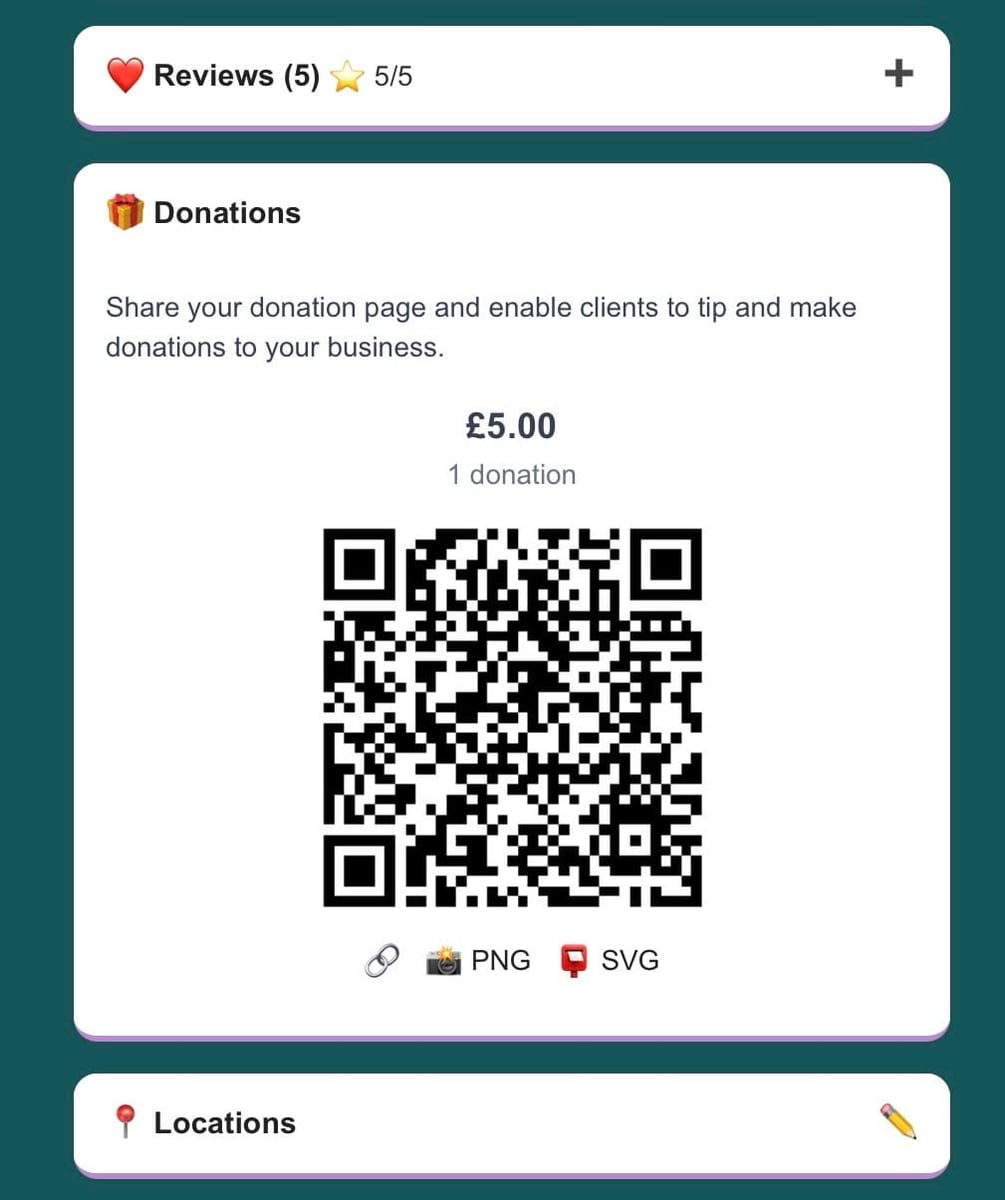
Business QR code. Lives on your profile page in the Donations accordion. Links to your business-level donation page. Download as PNG for print or sharing — prop it on the reception desk, tape it to the studio door, drop it in a WhatsApp group.
Class QR code. Generated for every class you create. Links to a class-specific donation page. The URL includes ?class={id}&via=qr — which records both which class the donation supports and that it came through a QR code. Lives on the class attendance page in your admin. Print it on the class handout for Thursday’s session and any donations that flow through that code are attributed to that class in your admin.
The ?via=qr tracking parameter is added automatically. You don’t need to manage it — the code just works. In your admin, the per-donor list shows whether each donation came via QR, a shared link, or a direct visit to your profile page.
Download formats: PNG is available on both your profile page and the class attendance page. SVG is also available on the class attendance page, useful for print-quality resizing.
Where to use your QR codes:
- Printed class handout — at the end of the session when clients feel the value most directly
- A card propped on a chair or displayed on a whiteboard after class
- Your WhatsApp status — visible to every contact, no active promotion needed
- The studio door, window, or reception desk
- Your email footer
Accept Donations Without Charity Status
A common assumption stops many small business owners from even exploring donations: you need to be a registered charity to ask for them. You don’t.
Woven doesn’t check or require charity status. Any business with an active Stripe account can accept voluntary contributions from people who want to support their work. The legal position in the UK is that a business can receive gifts and voluntary payments from willing donors — what you cannot do is claim Gift Aid, which is a tax relief benefit exclusively for registered charities. Woven makes no Gift Aid claim on your behalf.
No charity registration required. A yoga teacher, a community dance studio, a personal trainer accepting “tip your teacher” contributions — all are eligible. The distinction that matters legally is between a voluntary gift to a business (what Woven donors give) and a charitable donation with tax relief attached (what registered charities receive). Woven is firmly in the first category.
No Gift Aid. Donors to non-charity businesses do not receive Gift Aid tax relief, and Woven does not claim it. This is not a limitation of the platform — it accurately reflects the business model. Donors who give to your Woven page know they’re supporting a person or a space they value, not a formal charitable cause.
For the Stripe side, donations must be for a genuine purpose you’re committed to. “Support the space” and “tip your teacher” contributions meet this bar clearly. See Stripe’s own requirements if you want to verify the specifics.
Donation Pricing — What Goes to Your Business
Every online donation platform involves two layers of fees: the platform that processes your donations and Stripe which handles the card payment. Here is how Woven compares.
| Woven | Donorbox | JustGiving | |
|---|---|---|---|
| Platform fee | 🎉 1.5% | 2.95% | 5% |
| Processing fee | Stripe standard | Stripe standard | Stripe standard |
| Net on a £5 donation | ~£4.64 | ~£4.57 | ~£4.47 |
Woven’s platform fee on donations is 1.5% — the same rate you pay on bookings. No separate pricing model to learn, no surprise charges. The Woven fee comes out of the donor’s amount alongside Stripe’s card processing fee, exactly the same way it works for class payments.
A worked example: a £5 donation. At Stripe’s UK card rate (approximately 1.5% + 20p), the processing fee comes to around 28p. Woven’s 1.5% platform fee comes to around 8p. Net to your Stripe account: approximately £4.64.
Donors see the clean amount they entered — there is no fee surfacing on the donation page, no “cover the fee” toggle, no top-up box. The £5 they chose is the £5 they pay; the fees come out behind the scenes, the same way they do when a client books a class. Donorbox takes 2.95% on top of Stripe. JustGiving takes 5%. Woven keeps it to the same low rate as bookings.
Where Donations Show Up in Your Admin
Donations surface in two places in your Woven admin.
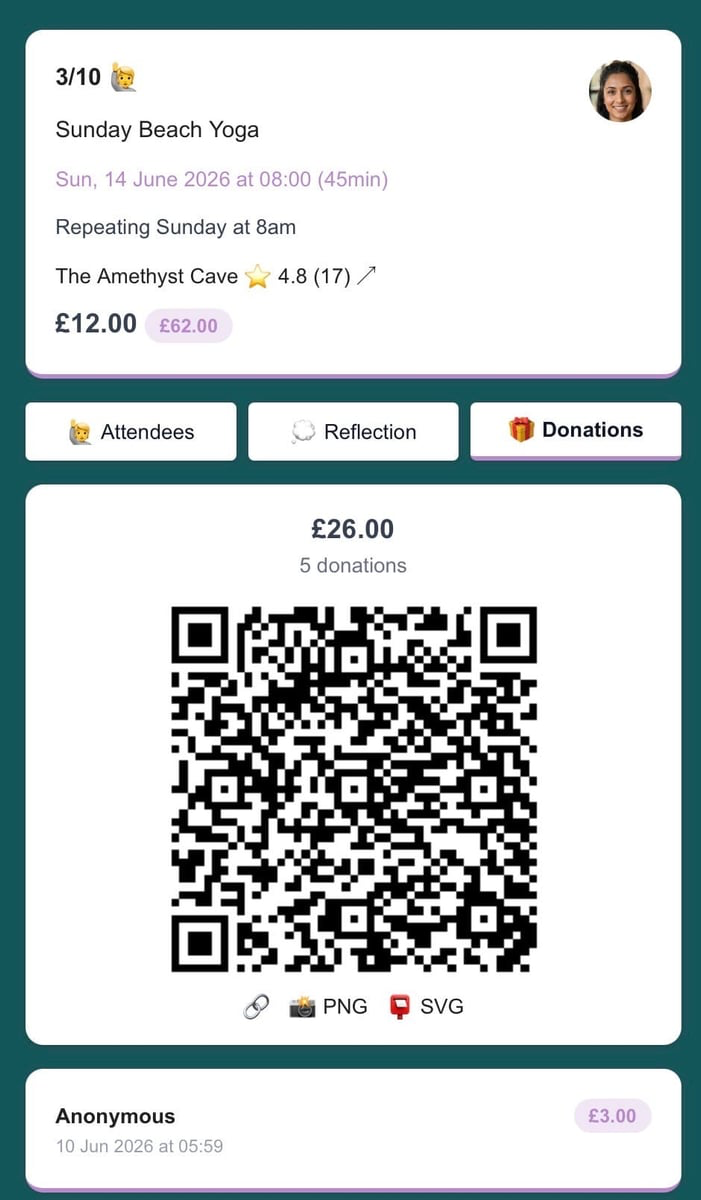
Class attendance page → Donations tab. Each class you run has its own Donations tab within the class attendance view. It shows:
- Total donations for that class — amount and count
- The class QR code with download actions (🔗 link, 📸 PNG, 📮 SVG), so you can share and track from the same place
- A per-donor list: amount, donor name (or “Anonymous”), whether the donation is attributed to an attendee on the class, and the tracking source (via QR or via link)
Attribution works automatically. When a donor leaves their phone number or email and it matches a confirmed attendee’s record on that class, the donation is linked to that person’s name in the list. Donors who leave all fields blank still have their donation recorded and paid out — they appear in your admin as “Anonymous.”
Profile page → Donations accordion. The 🎁 Donations section on your profile page shows your business-level donation link, QR code, and a running total for the current month. This is the surface for donations that aren’t tied to a specific class — clients who find your page directly, or supporters who donate via a link you’ve shared on social media.
See How Donations Work in Woven → for a step-by-step walkthrough of finding your links, what donors see, and how to read the attribution data.
Tips for Getting the Most from Woven Donations
Print the class QR code and display it at the end of the session. The moment after a class — when people feel the value most directly — is when they’re most likely to act. A QR code on the class printout or propped on a chair at the end converts better than a WhatsApp link sent the following day. Physical proximity to the prompt matters.
Add your business donation link to your WhatsApp bio. It’s visible to every contact and takes zero active promotion. It’s just there — for anyone who thinks of it while scrolling their bio links. Low effort, consistent presence.
Don’t overthink the chip amounts. Woven surfaces the most popular amounts from your real donation history automatically. If you’re starting from scratch, the defaults are £3, £5, and £10, with the £5 chip highlighted. As donations accumulate, the most frequent amount gets the “most popular” highlight — no configuration needed.
Leave all donor fields optional. Name, phone, email, and message are all optional on the donor form. Fewer required fields means fewer abandoned forms. The donation records successfully even when the donor leaves everything blank.
Let the QR do the asking. Pointing at a code on the wall is less uncomfortable than verbally asking someone to donate. It’s an invitation, not a request — and the person can choose to engage with it or not. Framing it as optional (“it’s there if you’d like to support the space”) works better than a direct ask.
Related: